 Naqood
How to Use Tasks, Your To-Do List in Naqood
Naqood does a lot of bookkeeping work for you in the background. It matches bank lines to invoices and purchases, reads supplier documents and spots overdue invoices. Some of that work needs a final decision from you, and Tasks is where you make it.
Tasks gives you one list of everything waiting for you. Pick a task, check the details, and confirm or reject it.
Tasks is available on all plans. Tasks created from documents, such as purchases to approve, need the Pro or Max plan, because they rely on Naqood reading your documents.
Step 1 - Open Tasks
Click Tasks in the sidebar. The badge next to it shows how many open tasks you have.
Step 2 - Find the task you want
The page has two columns. On the left, your tasks are listed and grouped by month. On the right, you see the task you selected.
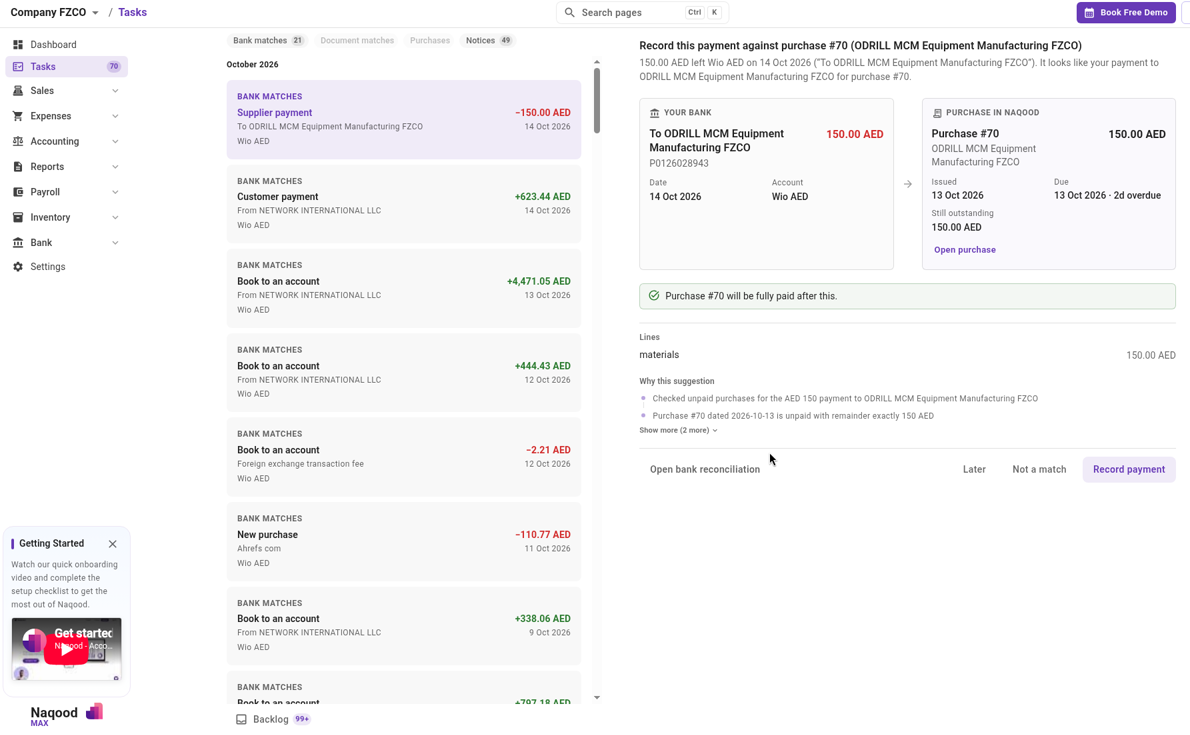 The Tasks page. Your tasks are listed on the left, and the selected task opens on the right.
Use the chips at the top of the list to narrow it down:
- Bank matches (shows how many are waiting)
- Document matches
- Purchases
- Notices (shows how many are waiting)
A chip is greyed out when there is nothing in that group.
Step 3 - Review bank matches
Bank match tasks are created from your bank lines. Each one explains what Naqood found, and Why this suggestion shows how it got there. Click Later on any task to come back to it another time.
Supplier payment. For example Record this payment against purchase #70. You see two cards side by side, YOUR BANK and PURCHASE IN NAQOOD, and a note such as Purchase #70 will be fully paid after this. Click Record payment to record it, Not a match if it is wrong, or Open bank reconciliation to handle it there.
Customer payment. Record this deposit against the matching invoice. Click Record payment, or Not a match.
New purchase. Create a purchase from [supplier] for this payment. There is no purchase for this payment yet, so Naqood fills one in for you under PURCHASE TO CREATE: supplier, dates, supplier invoice no., and a line with amount, description and account. You can Add VAT, Add Line, switch Prices include VAT, and Attach file or Select Existing Documents. Check everything, then click Create and reconcile, or Not a purchase.
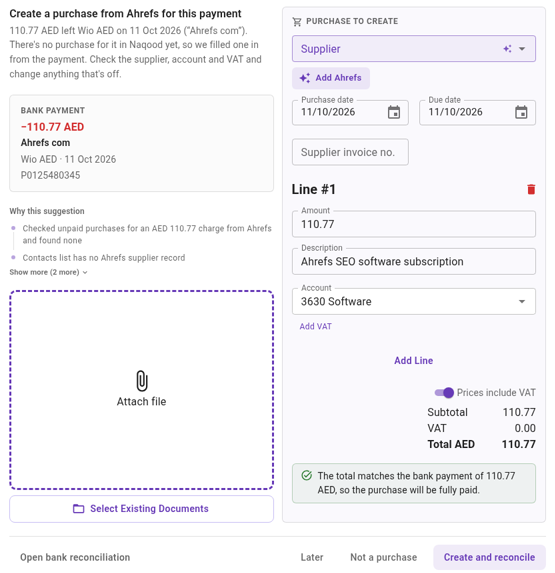 A new purchase task. Check the supplier, account and VAT before you click Create and reconcile.
Book to an account. Check this booking to [account]. The payment is not an invoice or purchase, so Naqood suggests booking it straight to an account. Under WHERE TO BOOK IT, check the Account, Description and Contact. You can Add VAT, Add project, and Upload a receipt or Select existing. Click Book and reconcile, or Wrong account if the suggestion is off.
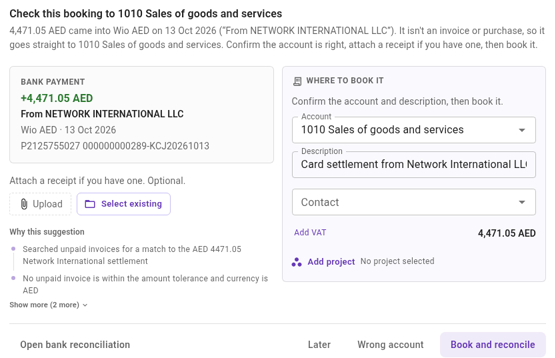 A book to an account task. Confirm the account and description, then book it.
Step 4 - Send payment reminders
Notices are created for overdue invoices, for example Send a first reminder to [customer]. The task shows the invoice number, the amount, how many days it is overdue, and the reminder steps:
- First reminder (Now)
- Second reminder (Later, if unpaid)
- Final notice (Later, if unpaid)
If the customer has no email address, Naqood warns you. Add one in the next step, or update the contact first. Click Review and send to check and send the reminder, or Open invoice to see the invoice.
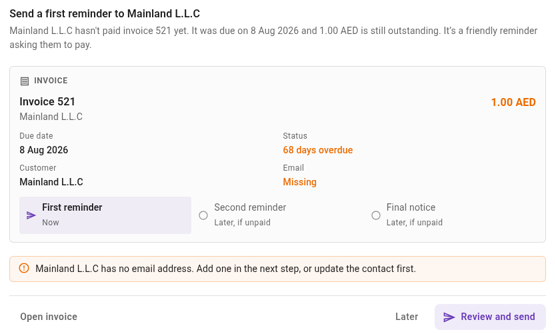 A first reminder task. The warning shows that the customer has no email address yet.
Step 5 - Approve purchases from documents
On Pro and Max, when Naqood reads a supplier invoice, it adds a task such as Approve the [X] purchase from [supplier]. Compare the details with the document, then click Approve purchase to post it, or Later.
Step 6 - Find matches for your bank backlog
At the bottom of the list, Backlog shows bank payments that have no match and no suggestion yet. Click it to open Bank backlog.
- Click Find matches to let Naqood look for matches again.
- Click Close to go back.
Step 7 - Clear your tasks every day
Naqood sends you a daily email to help you clear your tasks every day. Open Tasks from the email or the sidebar, and work through what is waiting.
Best Practices
- Clear your tasks daily. Use the daily email as your reminder, so your books stay up to date.
- Use the chips to work through one type of task at a time.
- Always review the details before you confirm, especially amounts, accounts and VAT.
- Reject wrong suggestions with Not a match, Not a purchase or Wrong account, so the list stays clean.
Summary
Tasks is your to-do list in Naqood. Open it from the sidebar. It lists everything Naqood needs you to decide, grouped by month, with chips for bank matches, document matches, purchases and notices. Select a task, review it on the right, and confirm or reject it with one click. A daily email helps you clear your tasks every day. Tasks is available on all plans, and purchase approval tasks from documents need the Pro or Max plan.