 Naqood
How to manage inventory in Naqood
Inventory in Naqood is the path from shelf to sale. You store goods in warehouses, track them as inventory items, bring stock in with inventory purchases, sell through products and invoices, then reduce on-hand quantity when you mark a delivery note as delivered.
This guide walks that full path with a simple Dubai gift-shop example: ceramic mugs in Main Warehouse Dubai, bought from a supplier, sold on an invoice, and shipped with a delivery note. For the accounting idea behind stock leaving the shelf as cost of sales, see Cost of Goods Sold.
What is inventory in Naqood?
Think of four building blocks that work together:
| Piece | What it does | Everyday analogy |
|---|---|---|
| Warehouse | Where stock sits (Main Warehouse Dubai, storage room, fulfilment centre) | The shelf or storeroom |
| Inventory item | The SKU you count (for example MUG-300-CER, Ceramic Mug 300ml) | The product on that shelf |
| Inventory purchase | Buys stock into a warehouse and increases quantity | Goods arriving from a supplier |
Sales complete the story. A product or service line on an invoice is what the customer buys. When that product is linked to an inventory item, a delivery note is what actually reduces stock once goods leave. Approving the invoice alone does not finish the stock movement.
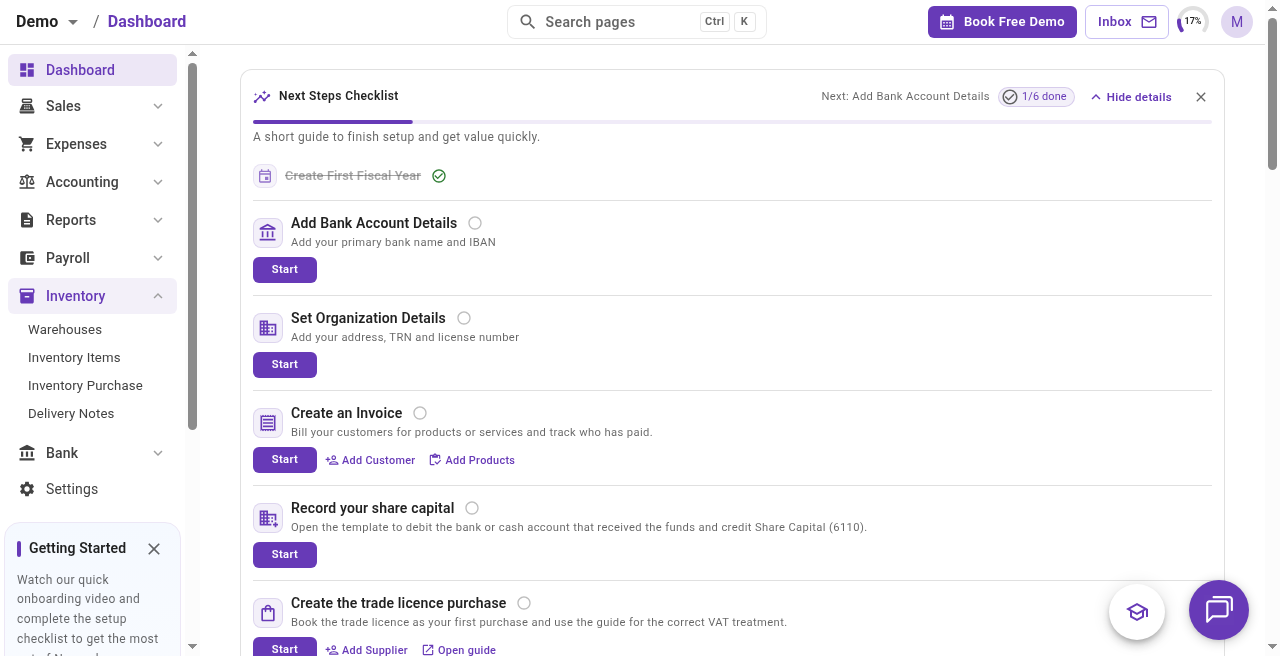
Open Inventory in the side menu to reach Warehouses, Inventory Items, Inventory Purchase, and Delivery Notes.
How do you add a warehouse?
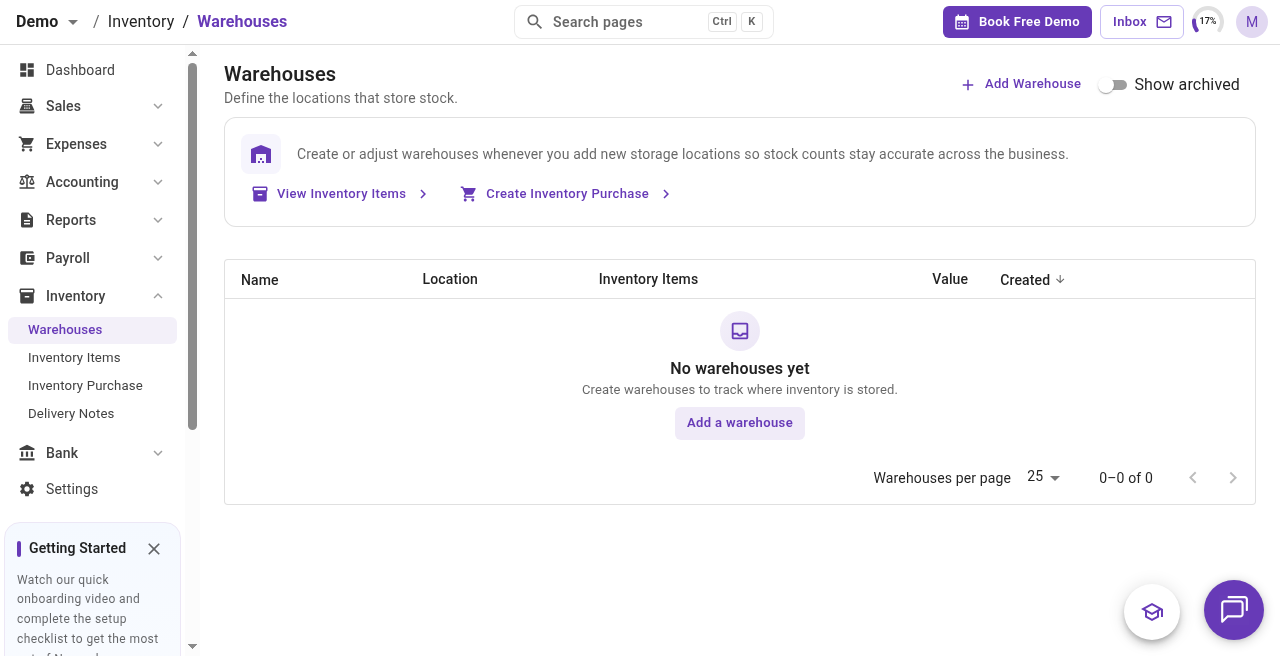
Go to Inventory → Warehouses, then create a warehouse your team can recognise.
- Open Warehouses.
- Click Add Warehouse (or the create action shown on the page).
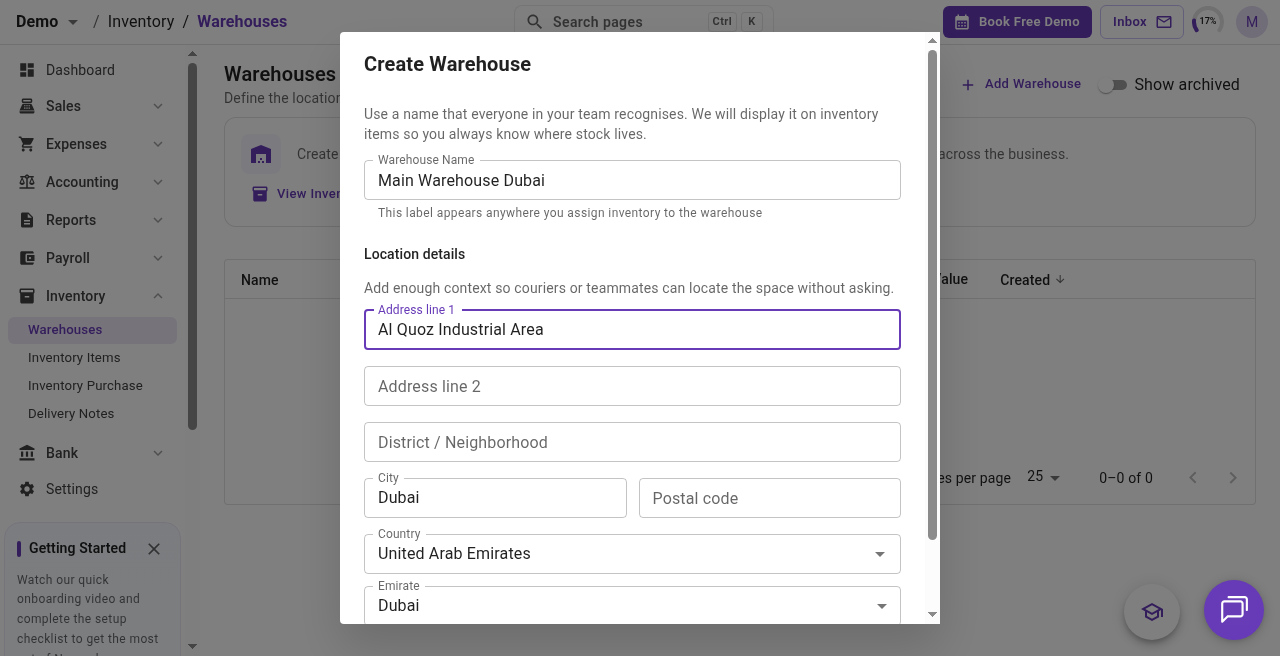
- Enter a clear name, such as Main Warehouse Dubai.
- Add location details if your team needs them (address or emirate).
- Save the warehouse.
Use one warehouse if everything ships from a single place. Add more when you keep stock in different cities, shops, or fulfilment sites so purchases and deliveries always name the right location.
How do you create an inventory item?
Go to Inventory → Inventory Items → Add Inventory Item.
- Enter a unique SKU (for example
MUG-300-CER). - Enter the Item Name customers and teammates will recognise (for example Ceramic Mug 300ml).
- Add an optional Description for internal detail.
- Where the form offers Link to a line item, connect the stock item to the product or service you sell so sales and stock stay aligned.
- Click Create.
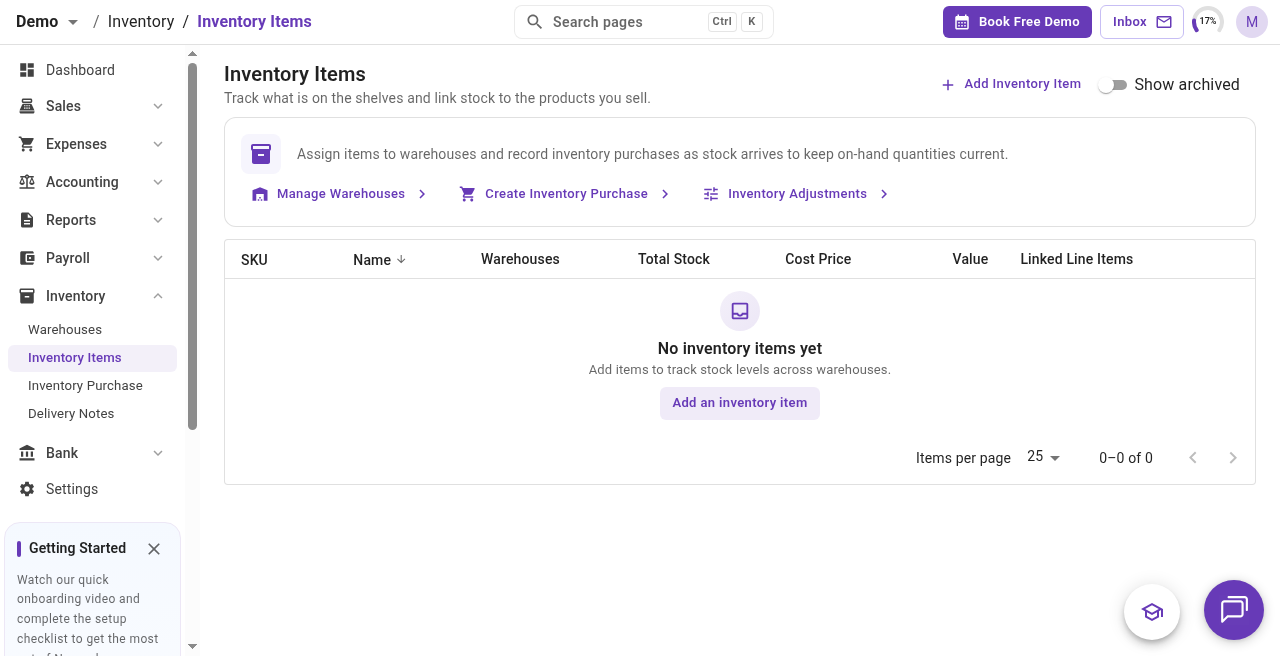
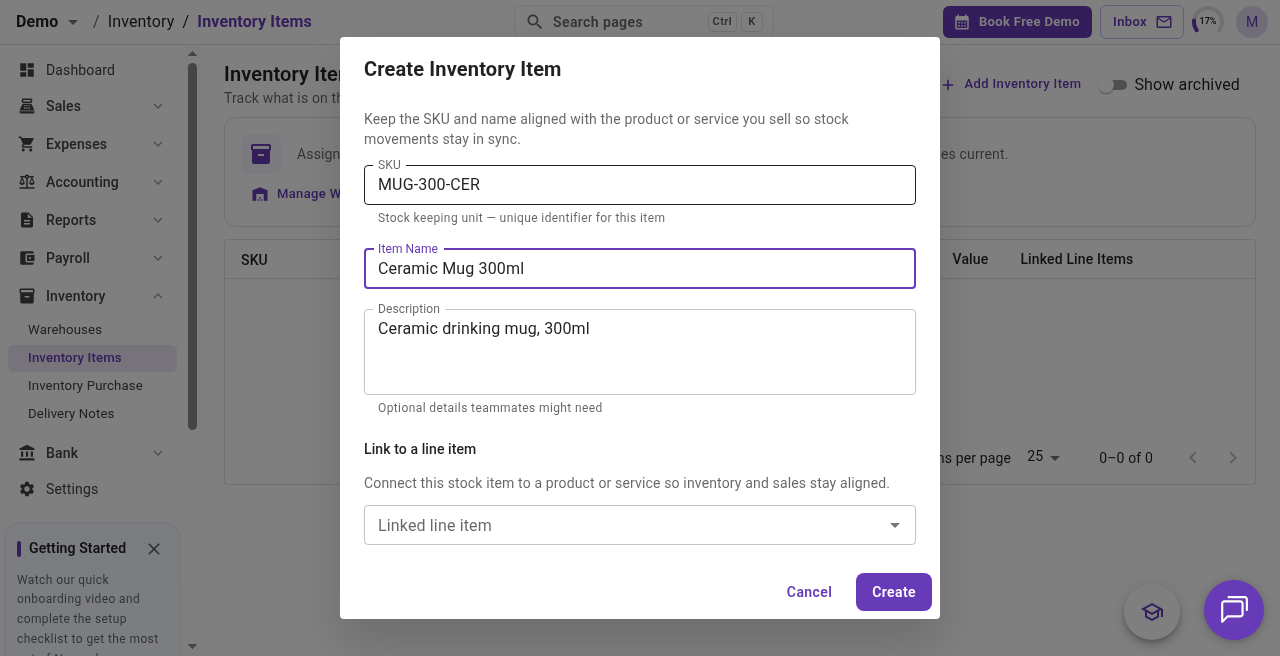
Keep the SKU and name close to the product you sell. That makes it easier to pick the right line on purchases, invoices, and delivery notes.
How do you put stock into a warehouse?
Bring stock in through Inventory → Inventory Purchase. In the side menu the page is Inventory Purchase. The form itself is the Stock Purchase template: it buys inventory items and updates warehouse quantities automatically.
Record an inventory purchase
- Go to Inventory → Inventory Purchase.
- Open a new Stock Purchase (from the Inventory Items banner you can also click Create Inventory Purchase).
- Choose Cash if you already paid, or Credit if you will pay the supplier later.
- Set the date (and due date for credit), currency, and optional supplier reference.
- Select the Supplier.
- On each line, choose the Inventory Item, the Warehouse, Quantity, and Total Cost, plus a short description if helpful.
- Create the purchase.
Example from this walkthrough: buy 24 ceramic mugs into Main Warehouse Dubai from Dubai Ceramic Suppliers for AED 240.00 total cost.
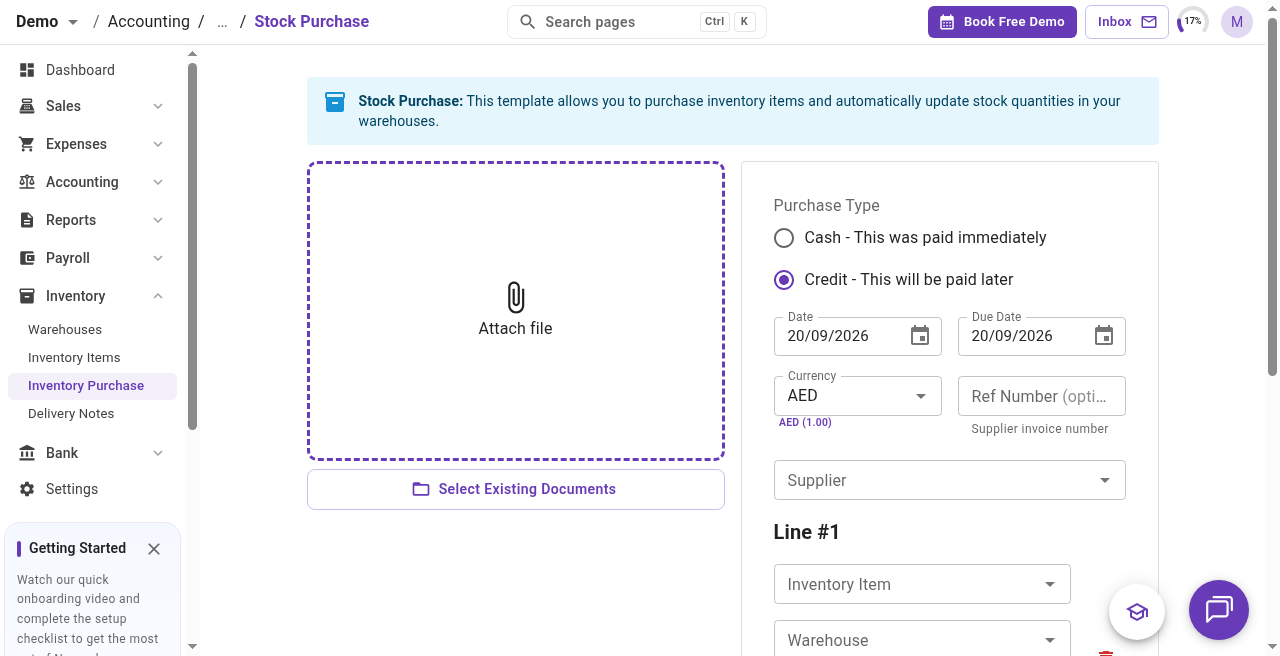
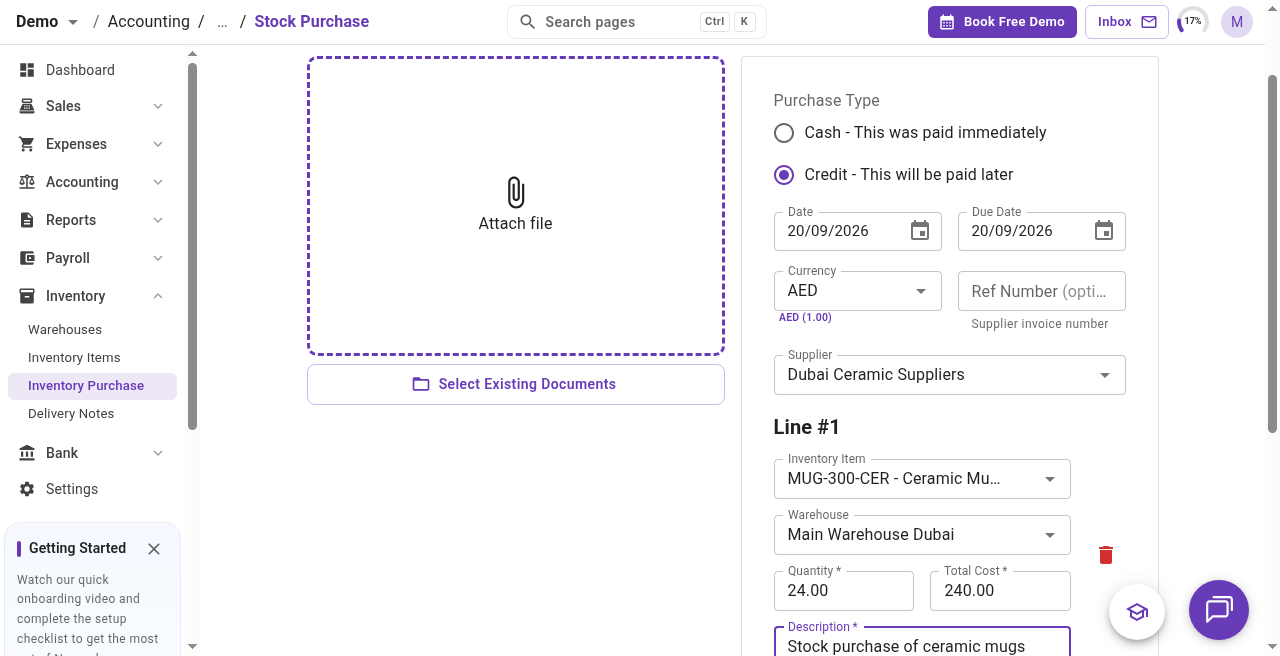
After you create the purchase, quantity on that warehouse rises and inventory value follows the cost you entered.
On the Inventory Items page, the purple banner also links to Manage Warehouses, Create Inventory Purchase, and Inventory Adjustments. Use Inventory Purchase when a supplier bill brings stock in. Use Inventory Adjustments when a physical count does not match the books.
Opening stock without a supplier bill
If you already hold stock and do not have a supplier bill, set opening stock from the inventory item.
- Open the inventory item (or create it first).
- Click Manage warehouses.
- Under Available warehouses, pick the warehouse that already holds the goods.
- Naqood opens Set initial stock.
- Enter Quantity (units on hand at that location).
- Enter Total Value in your base currency (the full value held at that warehouse).
- Choose the Contra Account for the journal entry.
- Set the Journal Date.
- Click Assign item.
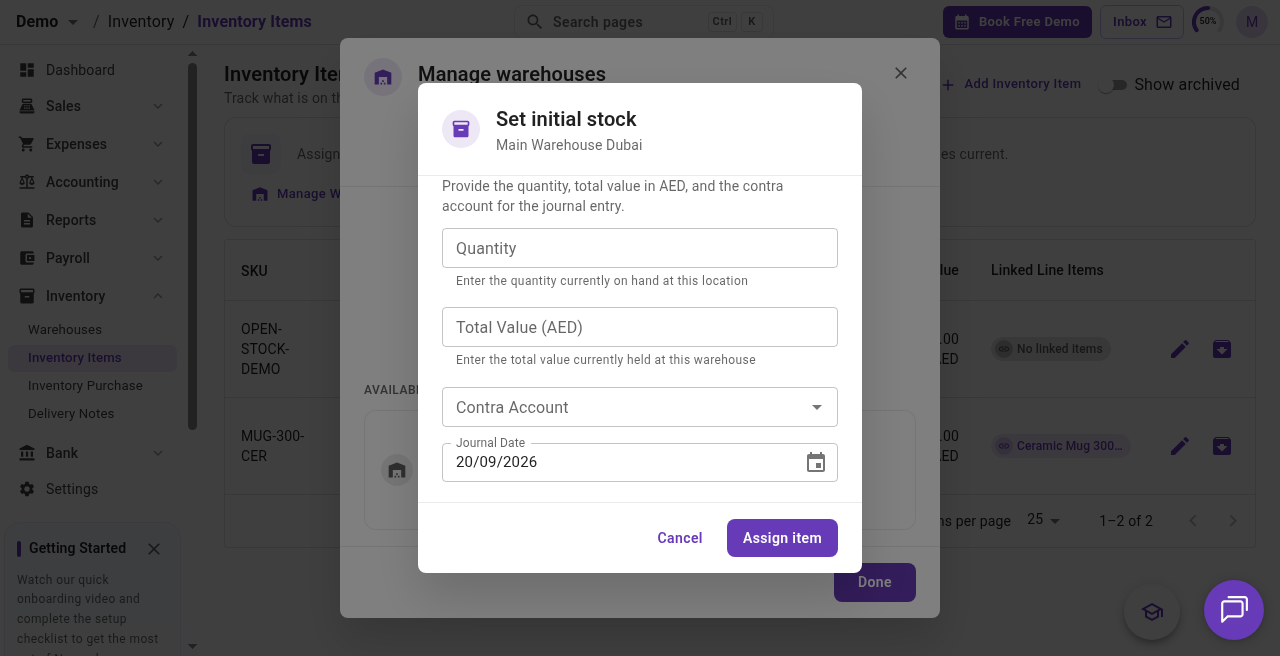
Naqood posts the opening stock journal and assigns the item to that warehouse. Use this for starting balances. Use Inventory → Inventory Purchase (Stock Purchase) when you are buying from a supplier.
How do inventory items connect to products and services?
Customers buy products and services. Warehouses hold inventory items. The link between them is what lets an invoice line know which stock to fulfill.
- Go to Sales → Products and Services.
- Create or edit the product you sell (for example Ceramic Mug 300ml).
- Enable tracking inventory for that product when the form offers it.
- Choose Link to existing inventory items and select the matching inventory item (for example MUG-300-CER).
- Save the product.
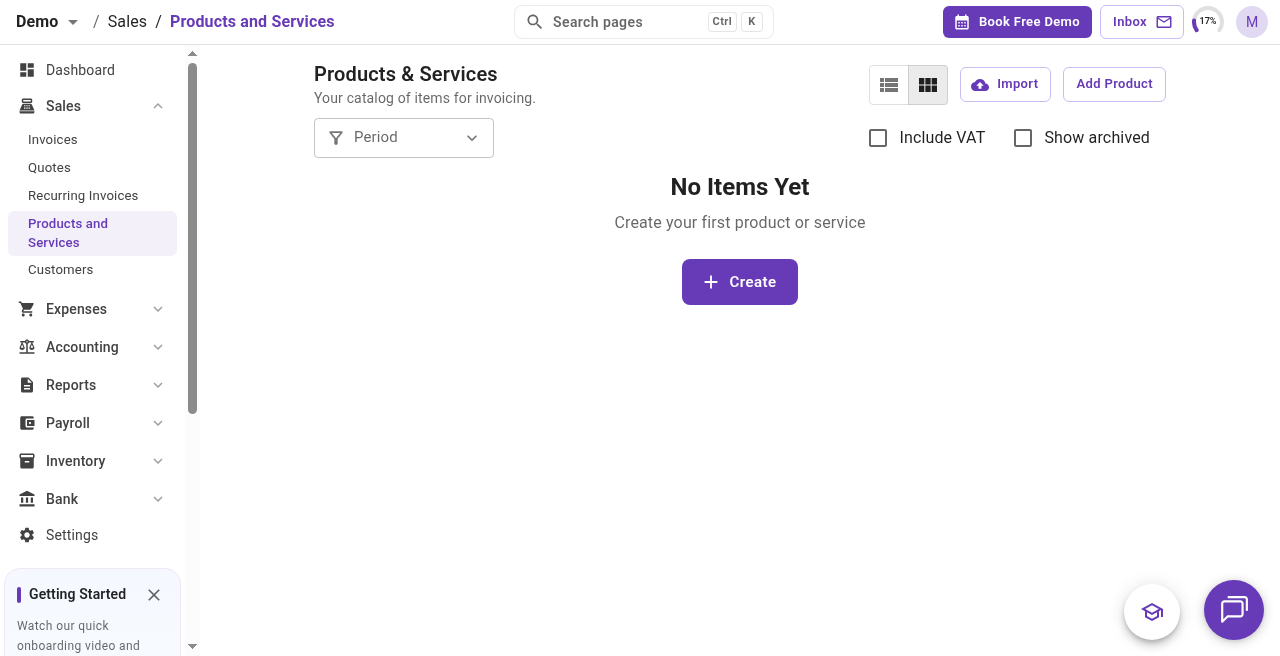
You can also start the link from the inventory item side (Link to a line item). Either way, one SKU should map cleanly to the sellable product so sales and stock do not drift apart.
How do you sell stock on an invoice?
- Go to Sales → Invoices → Add Invoice.
- Select the customer (create one if needed).
- On the line, pick the product linked to your inventory item (Ceramic Mug 300ml).
- Enter quantity and unit price (for example 1 piece at AED 12.00).
- Save the invoice, then approve or send it when it is ready to issue.
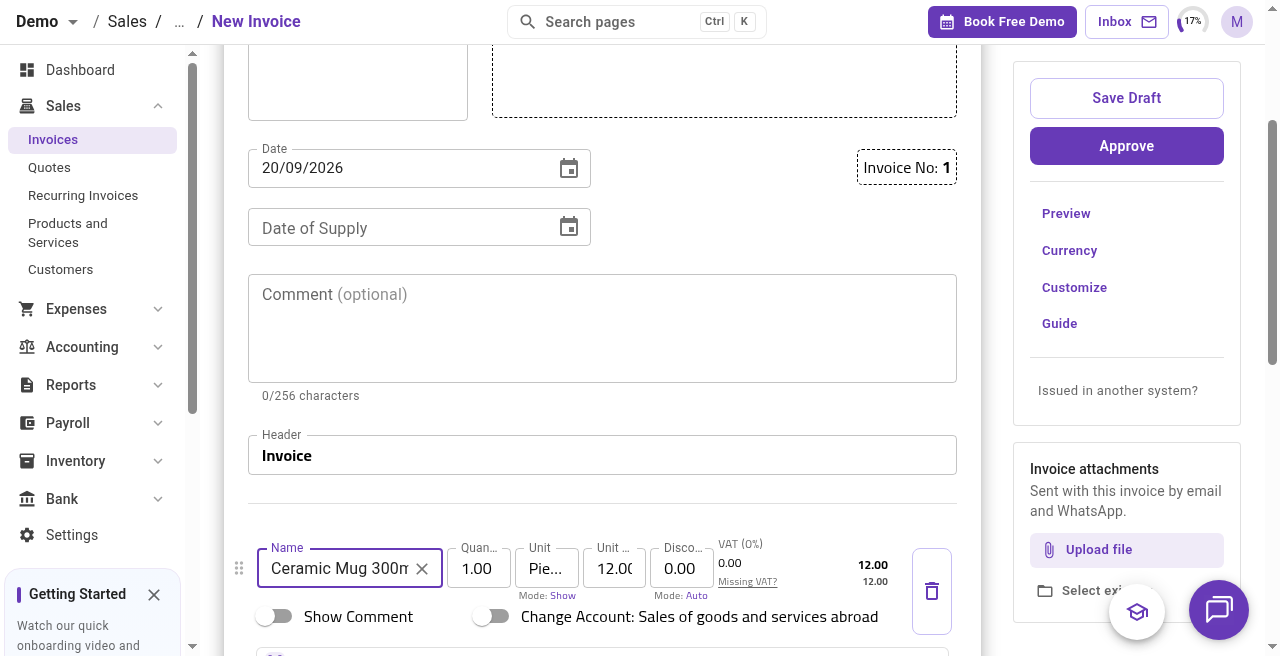
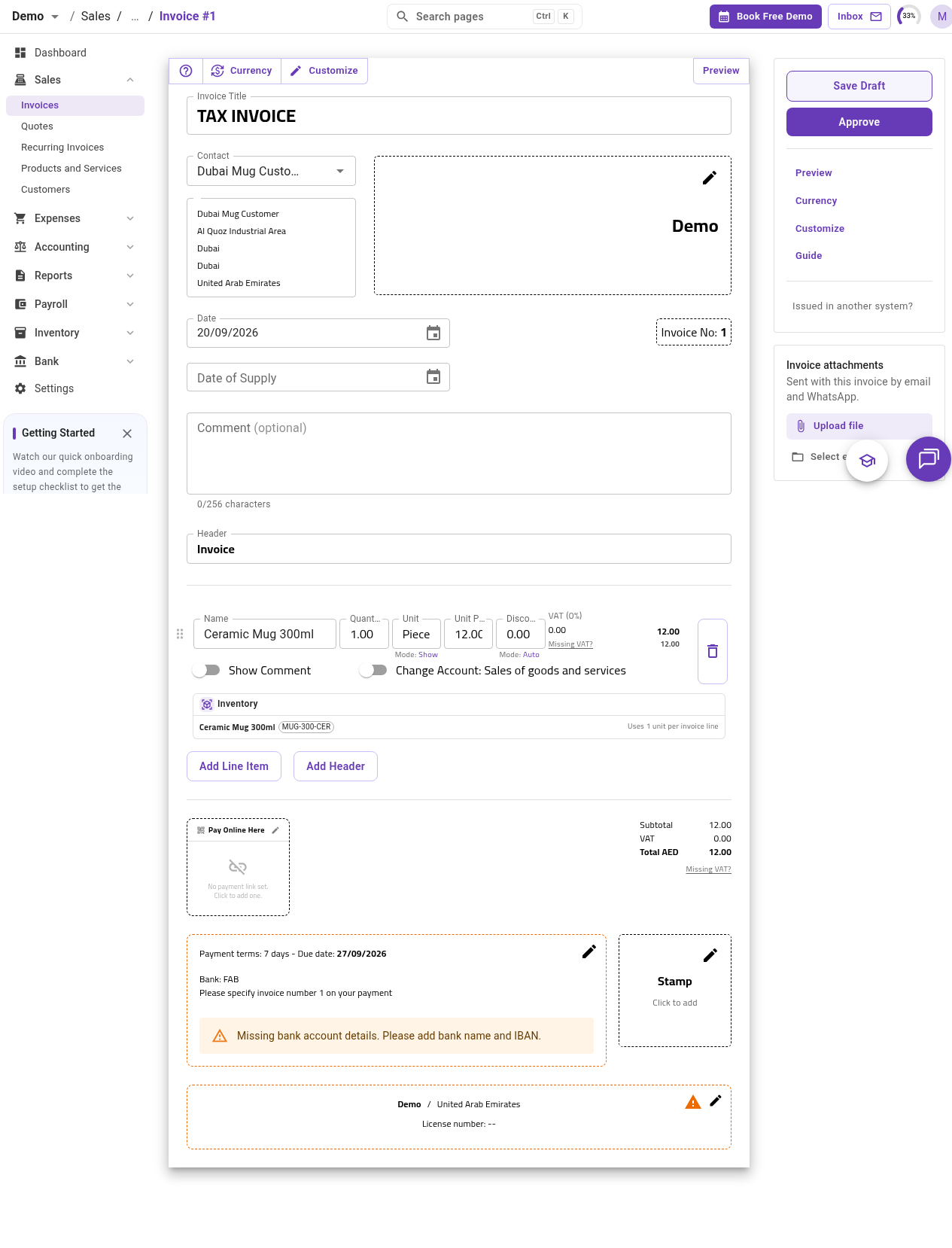
The invoice records the sale. Stock quantity is adjusted when you complete the delivery note for those goods, not only when you save the invoice.
How do delivery notes change stock?
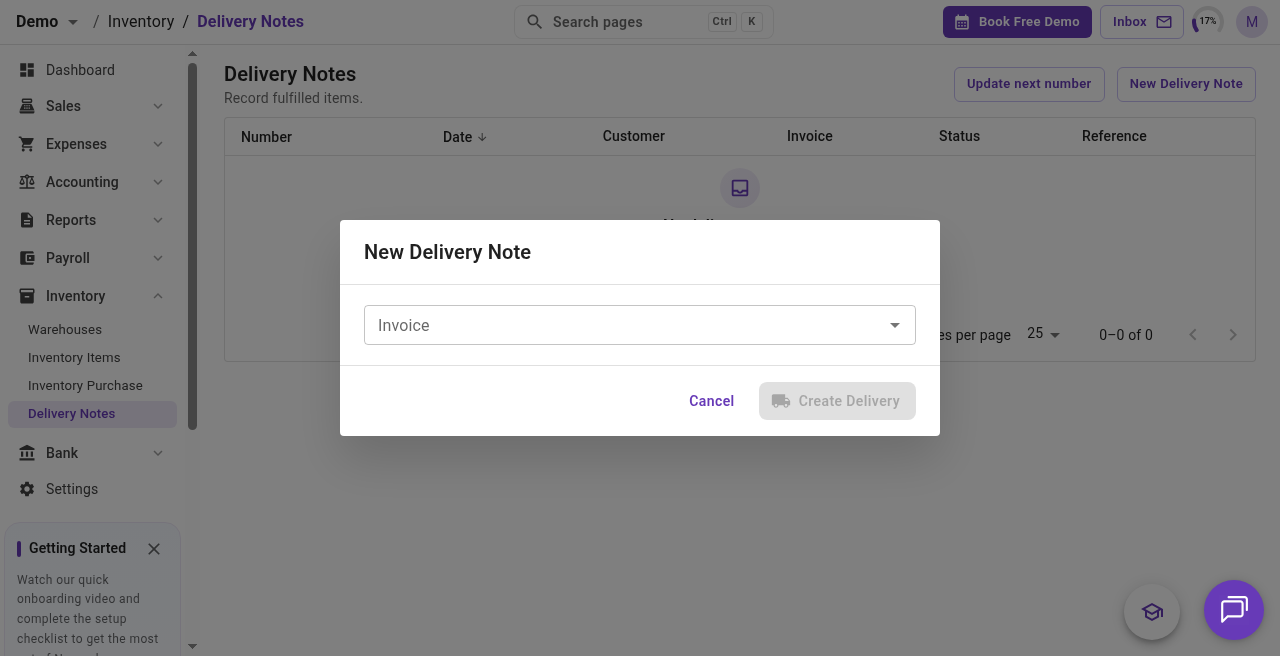
Delivery notes are what adjust your stock levels when goods leave the warehouse. Naqood shows that clearly on the prompt: once the note is marked as delivered, inventory updates automatically.
- After you save an invoice with inventory-linked products, Naqood may ask Do you want to create a delivery note? You can create a draft now, choose Already delivered, or pick I’ll do this later.
- Before a delivery note can be created, each item needs a warehouse that already has stock. If you see a warning to assign a warehouse with stock, record an inventory purchase (or opening stock) first, then return to the delivery note.
- Or go to Inventory → Delivery Notes → New Delivery Note, select the invoice, set warehouse and quantity, then confirm (the form may say Deliver 1 item when one unit is pending).
- When the goods leave, Mark as delivered.
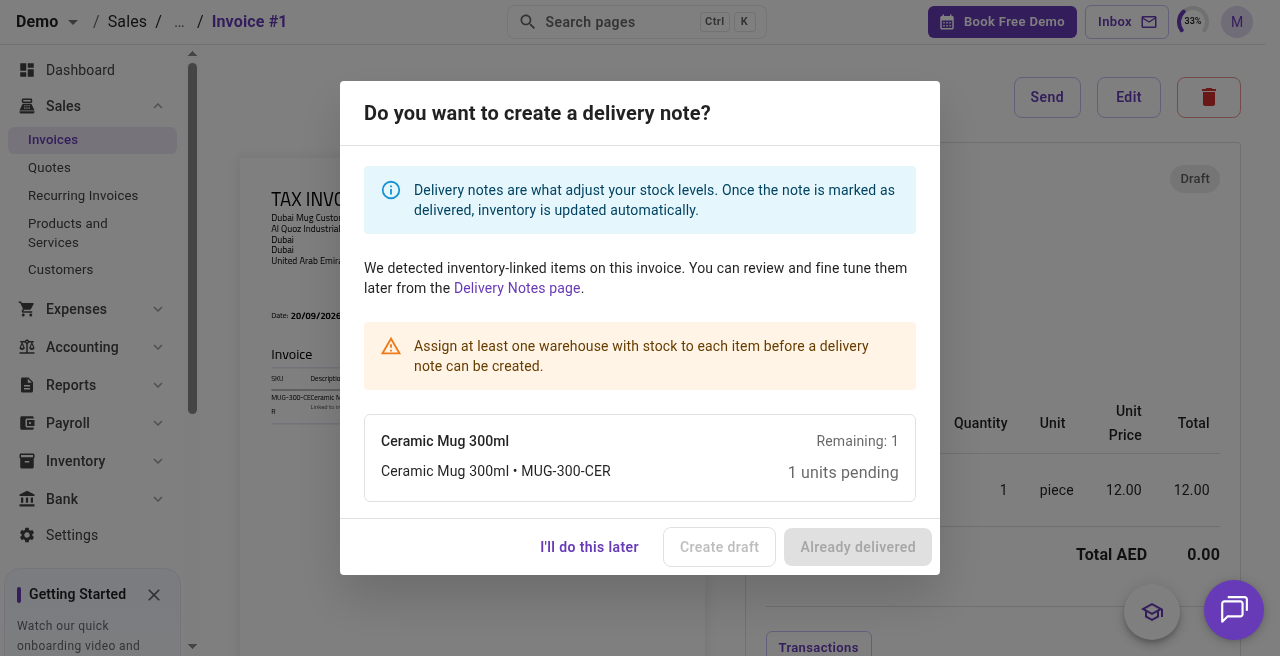
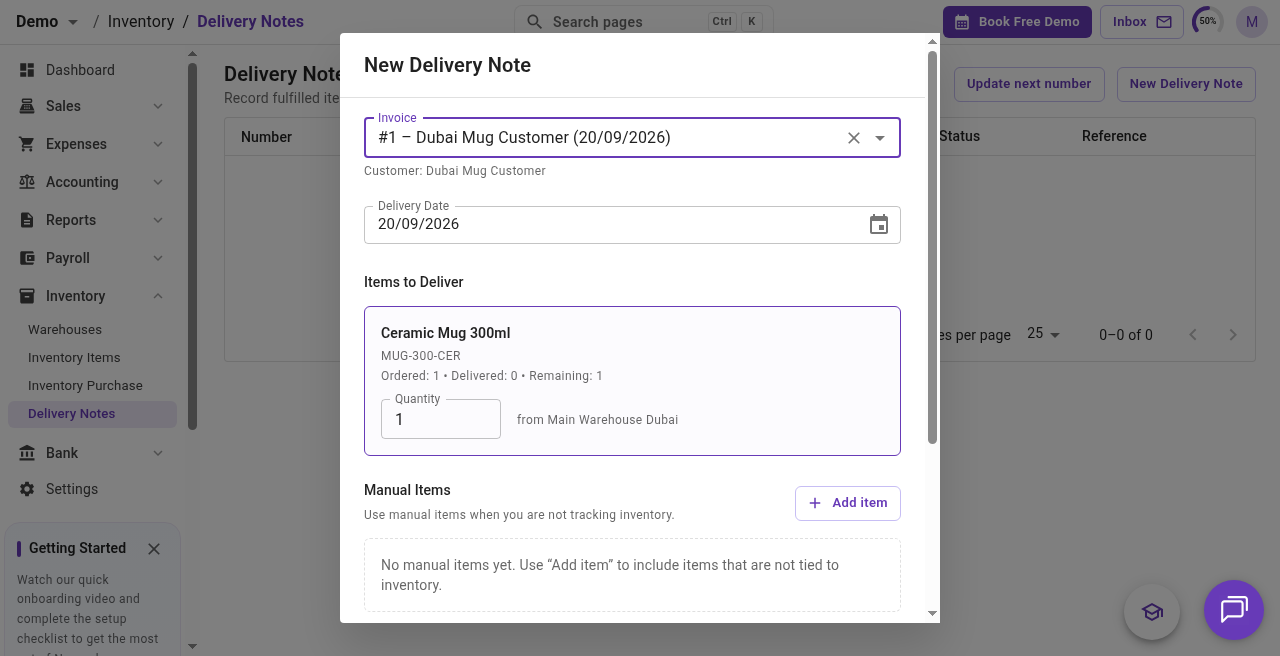
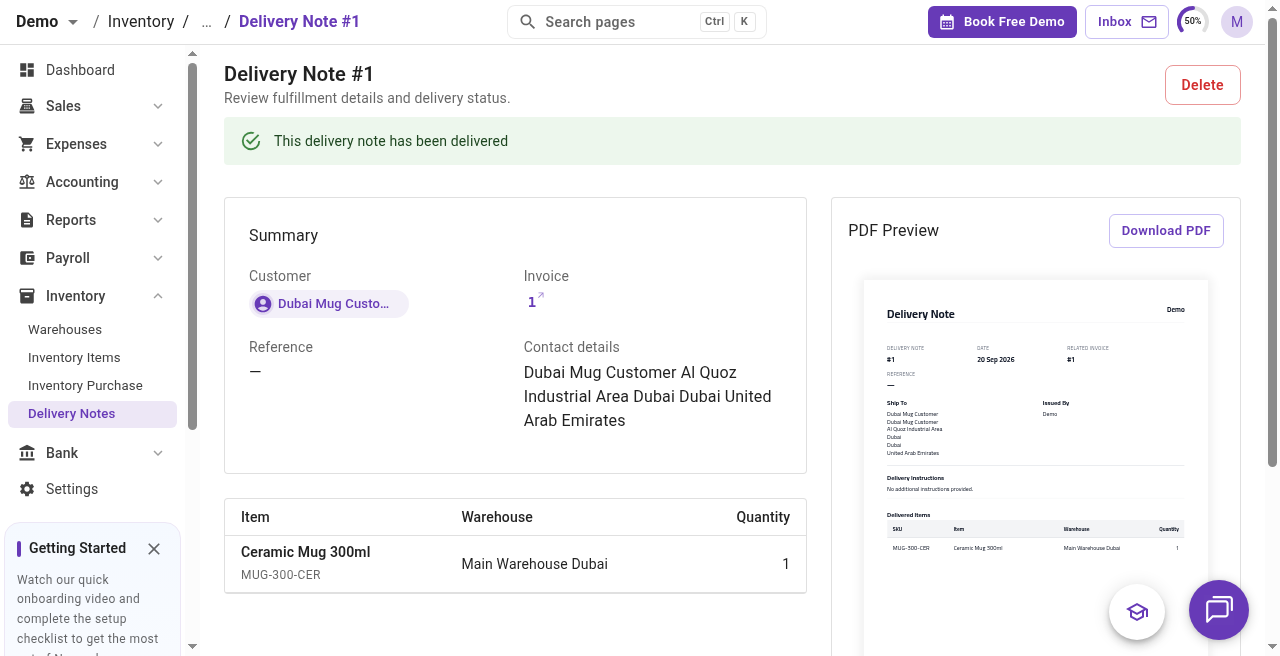
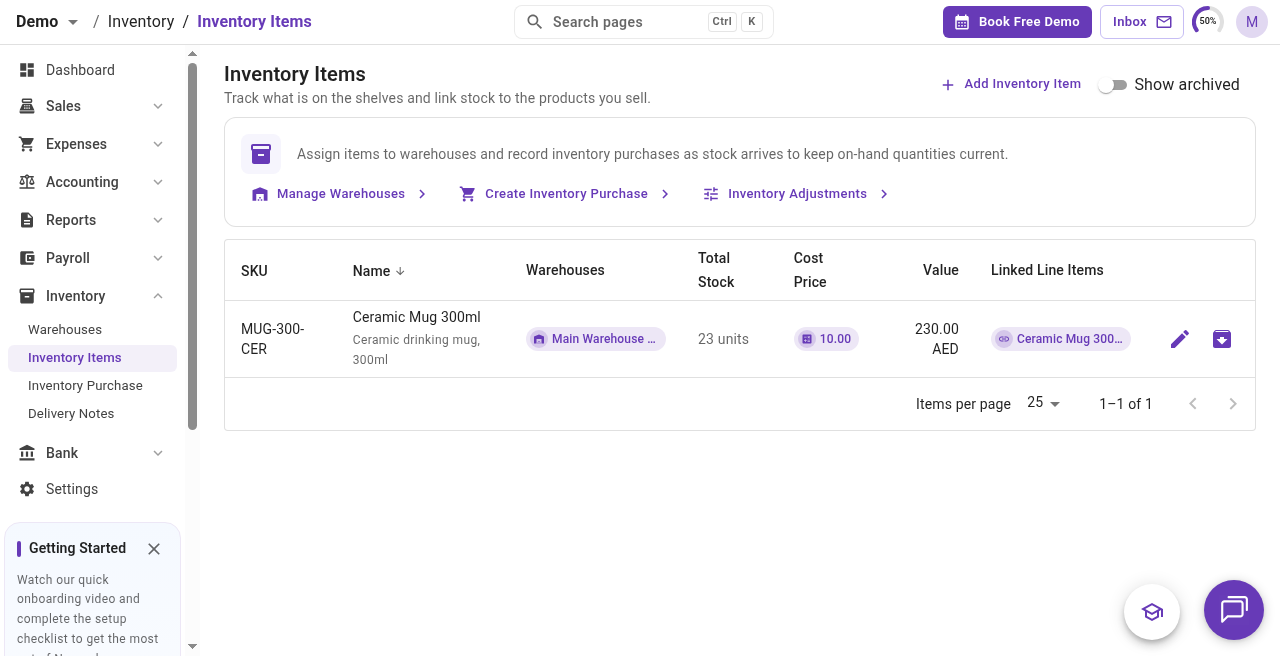
Draft delivery notes hold the plan. Marking as delivered is the step that reduces on-hand stock. After that, check Inventory → Inventory Items for the SKU. In the ceramic mug example, Total Stock moved from 24 units to 23 after delivering 1 piece.
What does a simple end-to-end example look like?
Here is the ceramic mug path in one pass:
- Create warehouse Main Warehouse Dubai.
- Create inventory item MUG-300-CER / Ceramic Mug 300ml and link it to the sellable product.
- Record an inventory purchase: 24 units into Main Warehouse Dubai at AED 240.00 total cost from your supplier.
- Confirm the product under Products and Services tracks inventory and links to that item.
- Invoice a customer for Ceramic Mug 300ml (quantity and price as agreed).
- Create a delivery note for that invoice (after stock exists in the warehouse), then Mark as delivered.
- Open the inventory item and confirm Total Stock dropped by the delivered quantity.
That loop (warehouse → item → purchase → product → invoice → delivery) is the full inventory story in Naqood.
Frequently asked questions about inventory in Naqood
Why are Create draft and Already delivered disabled on the delivery note prompt?
Usually because an inventory-linked line still has no warehouse with available stock. Buy or assign stock into a warehouse first, then create the delivery note.
When does stock quantity go down?
When you mark a delivery note as delivered for inventory-linked goods. Creating or even approving an invoice does not by itself finish the stock reduction.
What is the difference between Inventory Purchase and a normal purchase under Expenses?
Inventory → Inventory Purchase opens the Stock Purchase template. You pick inventory items, warehouses, quantities, and cost so on-hand stock and inventory value update together. A normal purchase under Expenses → Purchases is for costs that are not warehouse stock (rent, software, services).
Can I fix stock if a physical count does not match Naqood?
Yes. From Inventory Items, open Inventory Adjustments (also available as the stock adjustment template under Accounting). Use Inventory Purchase for supplier buys, and Inventory Adjustments when the count on the shelf differs from the books.
Do I need inventory features on every Naqood plan?
Inventory menus (warehouses, items, inventory purchase, delivery notes) depend on your organisation having inventory enabled. If you do not see Inventory in the side menu, check your plan or ask your Naqood admin to enable it.
Where should I start if I am setting inventory up for the first time?
Create the warehouse first, then the inventory item, then bring stock in with an inventory purchase. Link the product you sell, invoice a test customer, and complete one delivery note so you can see Total Stock move end to end.