 Naqood
How to send invoice payment notices in Naqood
A payment notice is a short, written follow-up that tells a customer an invoice is still unpaid. It restates what is owed, when it was due, and how much is outstanding, so the customer has everything in one place and can pay without digging through old emails.
Naqood lets you send these notices straight from the invoice. You pick the notice type, check the email, add the recipients, and send. Naqood attaches a notice PDF and the original invoice PDF, then keeps a history of every notice on that invoice. For the accounting idea behind money customers owe you, see Accounts Receivable.
This guide uses a simple Dubai example: invoice #1 to Dubai Mug Customer for AED 12.00, due on 27/09/2026 and still unpaid.
What is an invoice payment notice in Naqood?
A payment notice is an email reminder linked to one unpaid invoice. Naqood offers three notice types that form a simple escalation ladder:
| Notice type | What it is for | Tone |
|---|---|---|
| First reminder | The first follow-up after the due date | Polite |
| Second reminder | When the first reminder did not result in payment | Firmer |
| Final notice | The last notice before you escalate to formal legal action | Final |
Every notice email includes two attachments: the notice PDF and the original invoice PDF. Your customer gets the reminder and the invoice together, so there is no “can you resend the invoice?” delay.
How do you find the unpaid invoice?
- Go to Sales → Invoices.
- Find the invoice in the list. Unpaid invoices show the status Unpaid.
- Click the invoice number to open it.
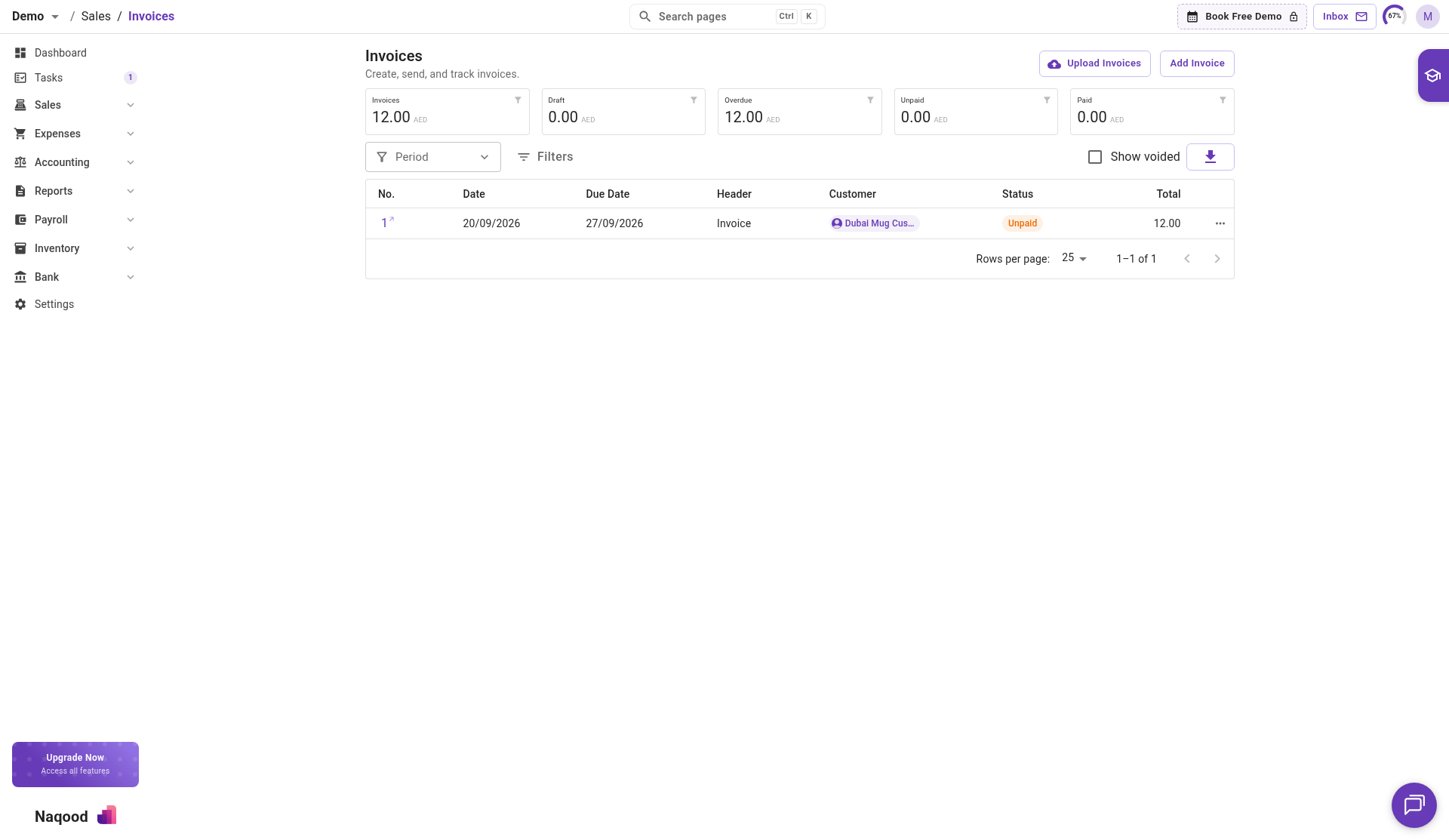
On the invoice detail page, Naqood shows a banner when money is still due, for example You still have to register payment of 12.00 AED for this invoice. The action buttons above the invoice are Send, Edit, Register Payment, and Send Notice.
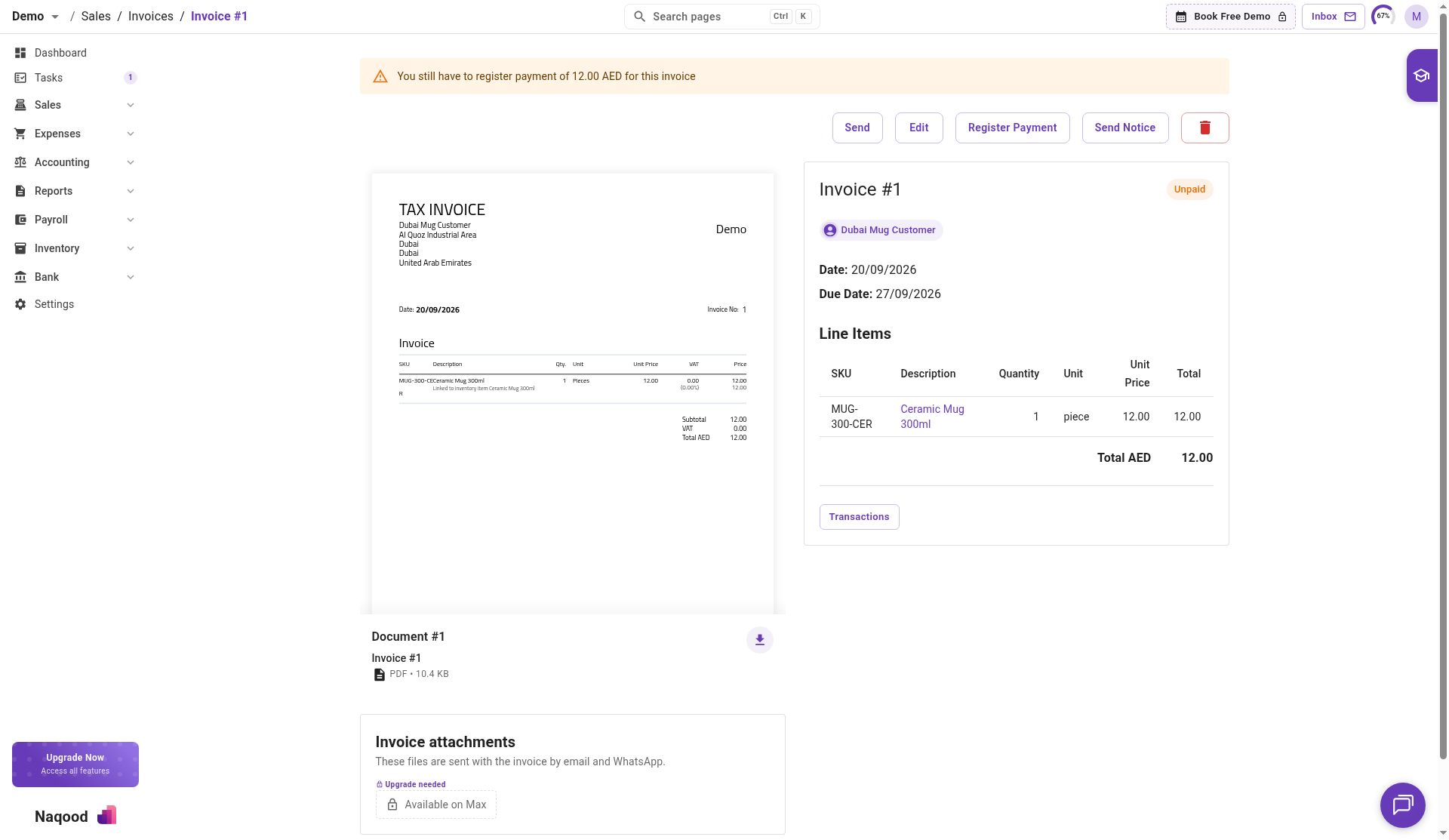
Payment notices are for unpaid invoices that you have already sent to the customer.
How do you send a payment notice?
- On the invoice, click Send Notice.
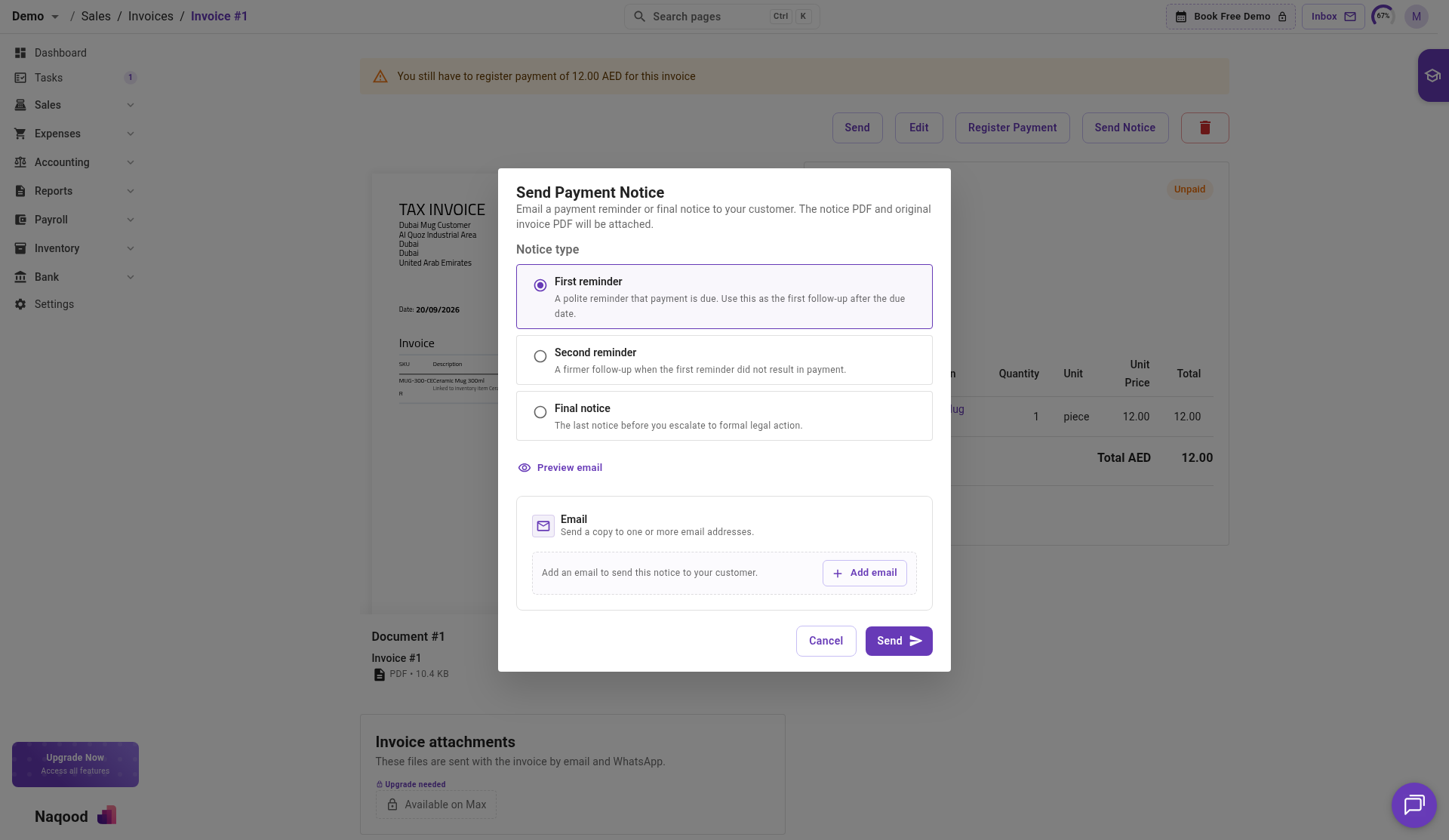
- Naqood opens Send Payment Notice: “Email a payment reminder or final notice to your customer. The notice PDF and original invoice PDF will be attached.”
- Under Notice type, choose First reminder, Second reminder, or Final notice. First reminder is selected by default.
- In the Email card (“Send a copy to one or more email addresses.”), click Add email.
- Enter the customer’s email address in the Email field.
- To send the notice to more people, such as the customer’s accounts team, click Add email again. Use the trash icon to remove an address.
- Click Send.
Naqood confirms with Payment notice sent. If you change your mind before sending, click Cancel.
Until you add an address, the Email card reads “Add an email to send this notice to your customer.” The notice is not sent anywhere until at least one email address is added.
How do you preview the notice email before sending?
- In Send Payment Notice, click Preview email.
- The Email preview panel opens with the Subject and Message.
- Check the details, then click Hide email preview to collapse it.
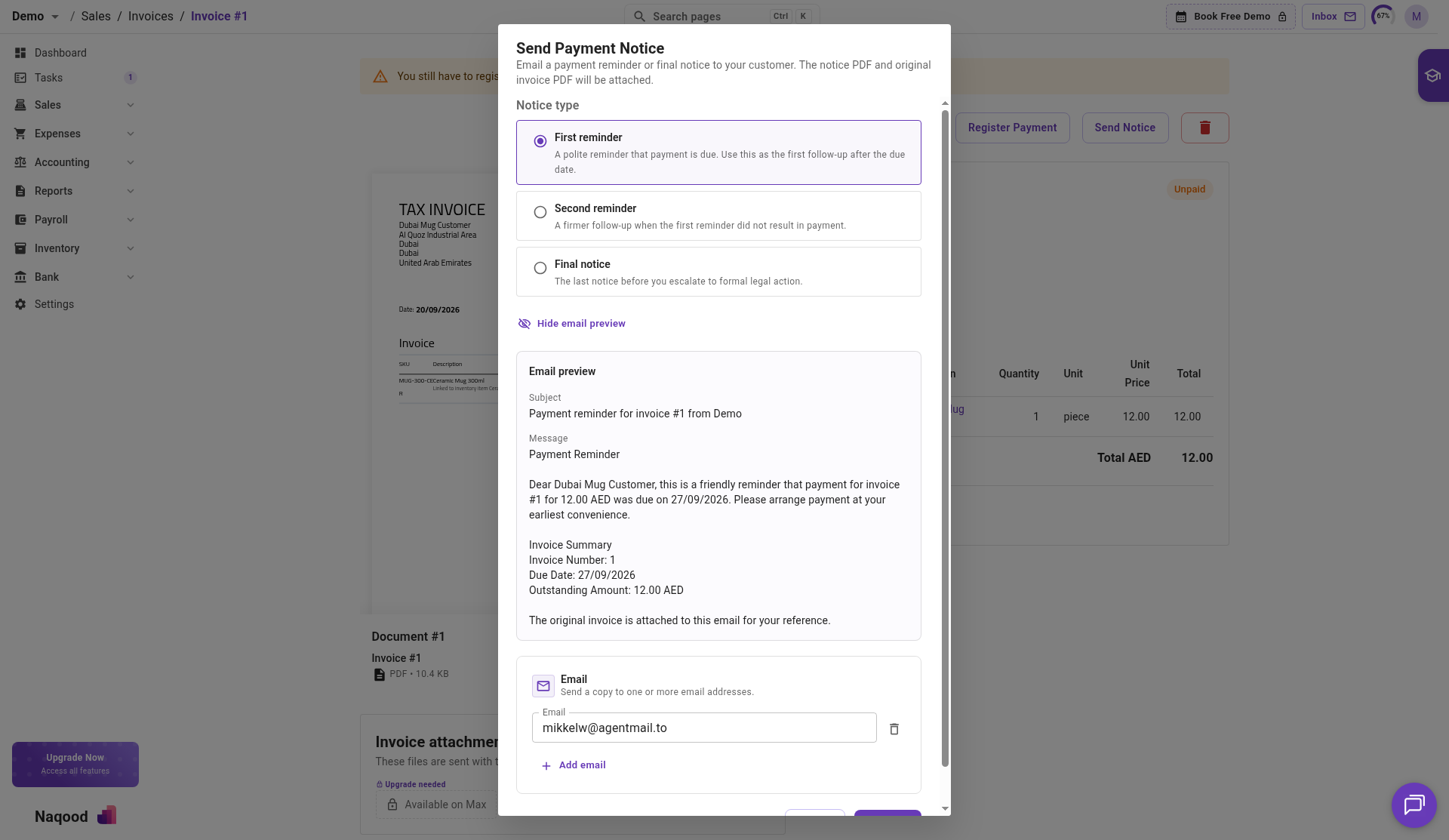
In the example, the subject is Payment reminder for invoice #1 from Demo. The message tells the customer that payment of 12.00 AED was due on 27/09/2026, lists an invoice summary with the invoice number, due date, and outstanding amount, and explains that the original invoice is attached.
The customer receives that same email with two PDFs attached. For a first reminder on invoice #1, those are first-reminder-1.pdf and invoice-1.pdf.
Where can you see which notices were sent?
Scroll down on the invoice detail page to Payment notices (“Payment reminders and final notices sent for this invoice.”).
The table lists every notice with three columns:
- Type: First reminder, Second reminder, or Final notice
- Sent to: the email address the notice went to
- Sent at: the date and time it was sent
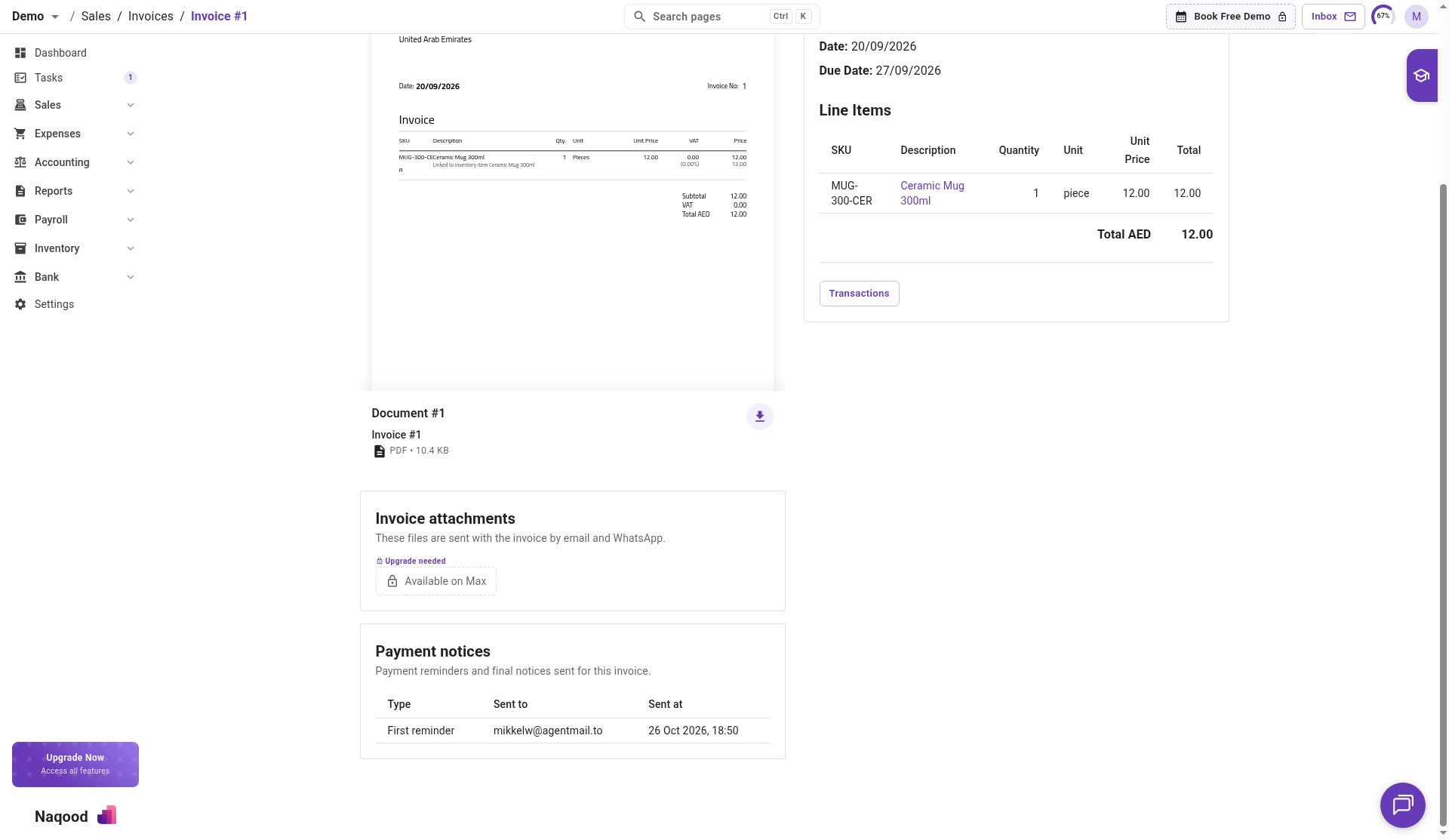
Check this history before you send the next notice. It shows at a glance whether the customer already had a first reminder and when, so you move up the ladder at the right pace and never send the same reminder twice by accident.
When should you use each notice type?
There is no single rule for timing, and your agreed payment terms with each customer should guide you. A practical ladder many small businesses follow looks like this:
- First reminder: a few days after the due date. Many late payments are simple oversights, so keep it friendly. The invoice is attached, which removes the most common excuse.
- Second reminder: one to two weeks after the first reminder if nothing has arrived. This is a good moment to also call or message your contact to check if there is a problem with the invoice.
- Final notice: when reminders and follow-up calls have not worked. Use it only when you are genuinely ready to take the next step, whether that is pausing work, involving a collections service, or speaking to a legal adviser.
A few tips that help:
- Send notices to the person who actually pays. In many UAE companies that is a finance or accounts payable inbox, not your usual contact. Add both with Add email.
- Stay consistent. Customers learn quickly whether reminders are followed up.
- Keep repeat late payers on a short leash. If a customer always needs a second reminder, consider shorter payment terms or a deposit on future work.
What should you do once the customer pays?
Register the payment in Naqood as soon as the money arrives.
- Open the invoice from Sales → Invoices.
- Click Register Payment.
- Record the payment details and save.
This keeps the invoice status, your receivables, and your reports accurate, and it stops you from chasing a customer who has already paid.
Frequently asked questions about payment notices in Naqood
What is attached to a payment notice email?
Two PDFs: the notice PDF and the original invoice PDF. For a first reminder on invoice #1, the files are first-reminder-1.pdf and invoice-1.pdf.
Can I send a notice to more than one email address?
Yes. Click Add email once for each address. Each address gets its own Email field, and you can remove one with the trash icon.
Which notice type is selected by default?
First reminder. Choose Second reminder or Final notice under Notice type when you need to escalate.
Can I see the email before my customer does?
Yes. Click Preview email in Send Payment Notice to see the subject and message. Click Hide email preview to close it.
How do I know which reminders a customer already received?
Open the invoice and scroll to Payment notices. The table shows the Type, Sent to, and Sent at for every notice on that invoice.
Does sending a notice mark the invoice as paid?
No. A notice only reminds the customer. When the money arrives, click Register Payment on the invoice to record it.
Send VAT compliant invoices in minutes
Create professional invoices and credit notes, track who has paid, and connect invoicing with VAT and accounting in one platform. Start free, FTA accredited.