 Naqood
How to invite your accountant to Naqood
Your accountant can work in the same books as you. No exports, no emailed spreadsheets, no waiting for a file to come back. They log in to Naqood and see your invoices, purchases, bank and reports.
Inviting is free on every plan, including Free, and Naqood does not limit how many people you invite. It takes about a minute.
This guide shows you how to invite your accountant, which role to give them, and what they get. The same steps work for a team member.
Who can invite someone?
Only users with the Administrator role. If you created the company, that is you. Other roles do not see the Add Member button.
Before you invite your accountant, check that your company details are filled in. They will see your books as they are. See how to set up your company details in Naqood.
How do you invite your accountant?
- Click Settings in the left sidebar.
- Open the Users tab. You see everyone in your company in a table with Member and Role.
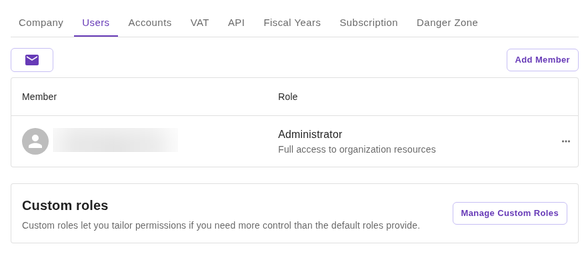
- Click Add Member. The Add a Member dialog opens.
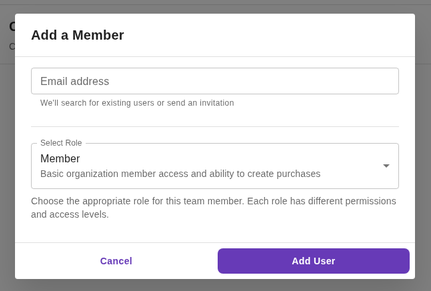
- Type your accountant’s email address in Email address. Use the address they log in to Naqood with, or will sign up with. Naqood checks the address as you type. The note under the field tells you what will happen:
- We’ll search for existing users or send an invitation is the starting note.
- Searching… means Naqood is looking.
- User found. They will be added to the organization. means they already have a Naqood login. They are added straight away.
- We’ll send an invitation to join your organization means they are new to Naqood. They get an invitation email.
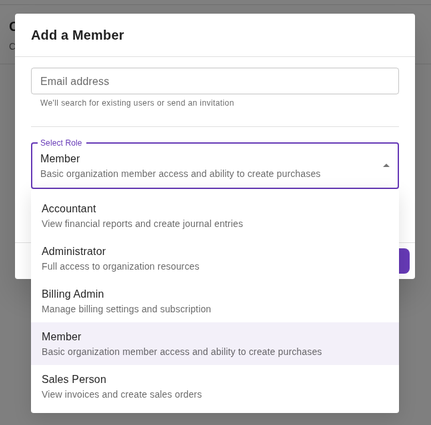
- Under Select Role, choose Accountant. The list starts on Member, so do not skip this step.
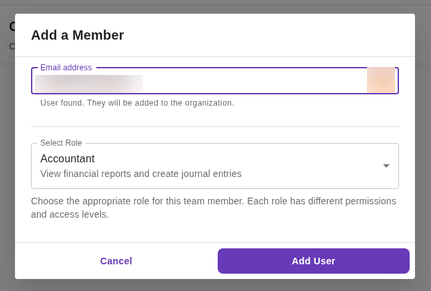
- Click Add User. Naqood shows Member added.
If you change your mind, click Cancel and nothing is sent.
If the person already had a login, they now appear in the Member table with the role you chose.
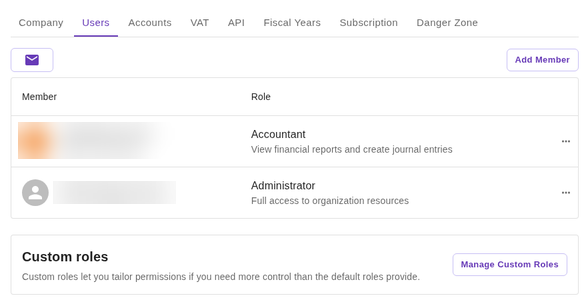
If they are new to Naqood, they do not appear in the table yet. They show up under pending invitations until they sign up. See how do you see or cancel a pending invitation.
Which role should you pick?
Naqood has five roles. Each one is listed with a short description in the Select Role list. The Accountant description is short, but the role can do much more than it says.
| Role | Shown in Naqood as | Use it for | Can work with | Cannot |
|---|---|---|---|---|
| Accountant | View financial reports and create journal entries | Your outside accountant or bookkeeper | Reports, journal entries, bank accounts and reconciliation, accounts, contacts, products and services, invoices, purchases, fiscal years, inventory, projects and payroll | Add or remove members, change organization settings, see billing and the subscription, manage documents (the Inbox) |
| Administrator | Full access to organization resources | A co-owner or finance lead you fully trust | Everything the Accountant can, plus members, organization settings, billing and documents | Nothing is blocked |
| Billing Admin | Manage billing settings and subscription | Whoever pays the Naqood subscription but should not see your books | Billing settings and subscription | Everything else |
| Member | Basic organization member access and ability to create purchases | Staff who enter expenses | Purchases | Everything else |
| Sales Person | View invoices and create sales orders | Staff who issue invoices | Invoices | Everything else |
So the short answer:
- Outside accountant or bookkeeper: Accountant.
- Staff member who enters expenses: Member.
- Staff member who sends invoices: Sales Person.
- Co-owner: Administrator. Give this role with care. An Administrator can add and remove other members.
An Accountant can book entries directly. See how to make journal entries in Naqood.
To see exactly what a role can do, click the role text in the Role column. A Permissions list opens with each permission and what it covers. This is the list for Accountant.
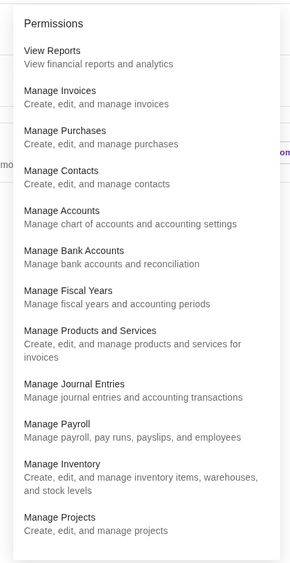
Need something in between? Use Manage Custom Roles under Custom roles on the Users tab to build your own role. Custom roles then show up in Select Role.
What does your accountant receive?
It depends on whether they already have a Naqood login.
They are new to Naqood
- They get an email with the subject Invitation to Join and your company name. It says who invited them and has a Sign up button.
- They click Sign up and create their account with the same email address you invited. Google, Microsoft, Apple or email all work, as long as the email matches.
- That is it. There is nothing to accept. As soon as they sign up, Naqood adds them to your company with the role you chose, and they land in your books.
The email does not say which role you chose. Tell your accountant, so they know what to expect.
They already use Naqood
- They get an email with the subject You have been added as accountant to and your company name. It has a Sign in button.
- They sign in. Your company is already in their list of companies. There is nothing to accept.
How do you see or cancel a pending invitation?
Invitations only exist for people who are new to Naqood. People who already have a login are added straight away, so they never show here.
- On the Users tab, click the envelope icon at the top left of the table. A number on the icon shows how many invitations are waiting.
- The Pending Invitations list shows each email, Invited by and the date.
- To cancel one, click the trash can icon on its row. There is no confirmation, the invitation just disappears.
A few things to know:
- There is no resend button. To send the email again, cancel the invitation and add the person again.
- Invitations do not expire.
- When the person signs up with the invited email, the invitation is used and disappears from the list.
How do you change a role or remove a member?
Click the three dots at the end of the member’s row. You see Change Role and Remove Member. You can only change the role of other people, not your own.
To change a role:
- Click Change Role. The dialog is called Change role for and the member’s email.
- Choose the new role. Save stays grey until you pick a different one.
- Click Save. Naqood shows User role updated.
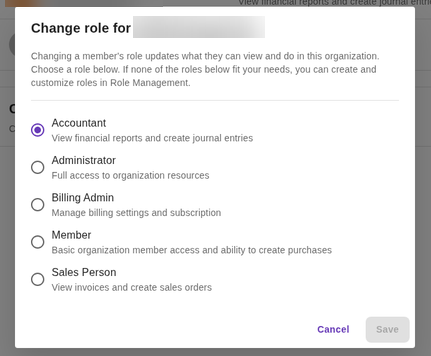
To remove a member:
- Click Remove Member.
- Naqood asks Are you sure you want to remove the email from this organization? Click Remove.
- Naqood shows Member removed. They lose access to your books straight away.
Do this when an accountant stops working with you, or a team member leaves.
How does an accountant switch between clients?
An accountant who works for several companies uses one Naqood login for all of them. Each company that adds them shows up in the same list.
- Click the company name at the top left of the top bar.
- Search for the company, or pick it from the list. Each company shows its name and its short name under it.
- Naqood opens that company’s dashboard. Next time they log in, Naqood takes them back to the company they used last.
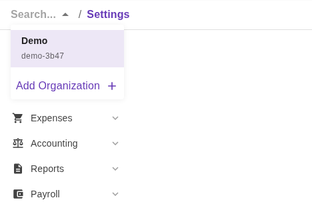
The last row, Add Organization, creates a new company. Do not click it to find a client.
Common mistakes
- The invite goes to the wrong person. Check the email address before you click Add User. If a new person gets it by mistake, cancel it under pending invitations.
- Your accountant signs up with a different email. Naqood only matches the email you invited. Ask them which address they want to use, and invite that one. Cancel the old invitation.
- You leave the role on Member. The list starts on Member. Choose Accountant before you click Add User.
- You give Administrator to everyone. Administrators can add and remove members and see billing. Give it only to people you fully trust.
- You wait for a resend button. There is none. Cancel the invitation and add the person again.
- Your accountant cannot find something. The Accountant role does not include Settings tabs like Company, Users and Subscription, or the Inbox. If they need more, change their role or create a custom one.
- You see You cannot add yourself. You typed your own email. Use your accountant’s.
Frequently asked questions
Does inviting an accountant cost anything?
No. You can invite your accountant and other users on every plan, including Free.
How many people can I invite?
Naqood does not limit it. Add your accountant, your bookkeeper and your team.
Can my accountant invite other people?
No. Only an Administrator can add, change and remove members. An accountant cannot see Add Member or your subscription.
Can I invite more than one accountant?
Yes. Repeat the steps for each person.
Does the invitation expire?
No. It stays under pending invitations until the person signs up or you cancel it.
Can I give my accountant less access?
Yes. Choose a different role, or build one with Manage Custom Roles. A custom role needs at least one permission.
What if my accountant already has a Naqood login?
Then Naqood adds them straight away and sends them a You have been added as email. They do not need to sign up again.
Keep your books in order with Naqood
Accounting software built for UAE small businesses: invoices, bills, bank, VAT and Corporate Tax in one place. Free plan, FTA accredited.