 Naqood
How to set up your company details before your first invoice in Naqood
When you approve an invoice, Naqood checks that your company details and payment details are complete. If something is missing, it stops you with Review Before Approving and a list of what to fix.
This guide shows you where each of those details lives. Fill them in once, and every invoice after that goes straight through.
You need four things:
- Your company License Number, address, country, and emirate
- Your VAT registration, if your business is VAT registered
- A bank account with a Bank Name and IBAN
- Payment terms on the invoice
This guide uses the Demo company in Dubai, with License Number 1234567, TRN 100000000000003, and a First Abu Dhabi Bank account in AED.
Where do you enter your company details?
- Click Settings. It is the last item in the left sidebar.
- Stay on the Company tab. The other tabs are Users, Accounts, VAT, API, Fiscal Years, Subscription, and Danger Zone.
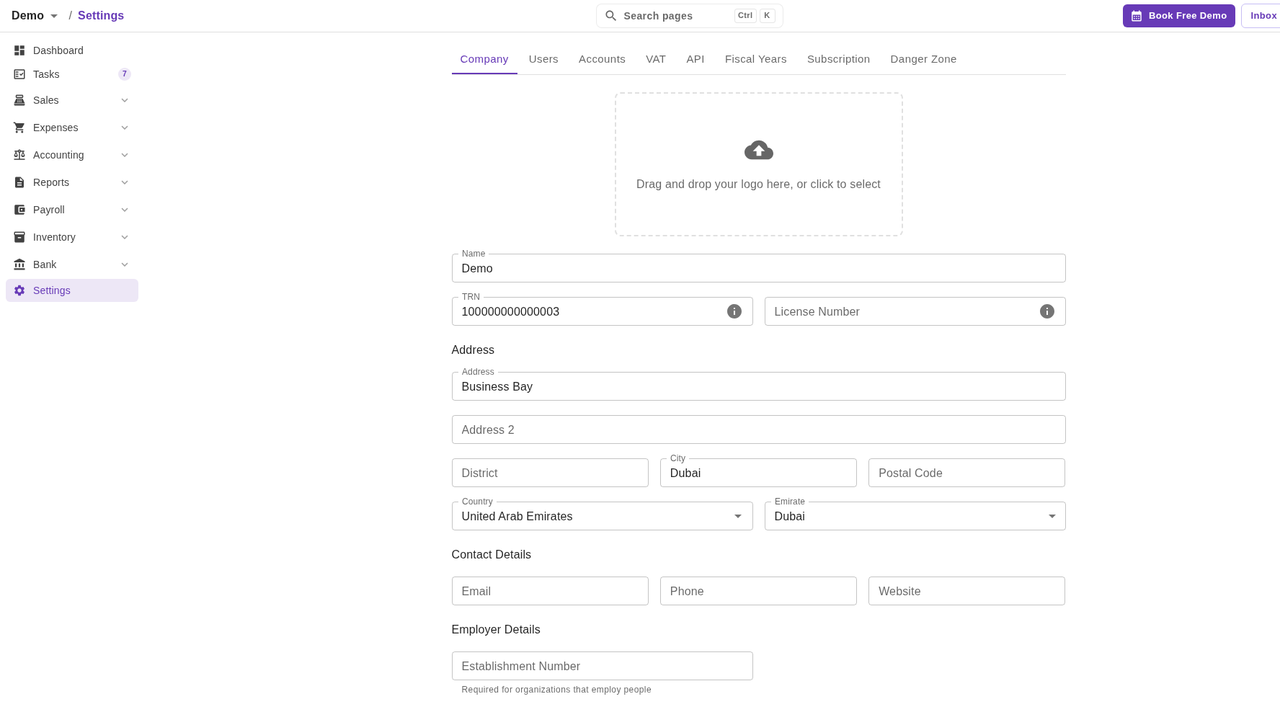
- Add your logo. Drag it onto Drag and drop your logo here, or click to select, or click the box to pick a file. Your logo appears on every new invoice.
- Check Name. This is your company name as it appears on invoices.
- Enter your TRN if you are VAT registered. It is the 15 digit Tax Registration Number from the FTA. See Tax Registration Number.
- Enter your License Number. This is the number on your trade license.
- Under Address, fill in Address, and add Address 2, District, City, and Postal Code if you use them.
- Choose your Country. For the UAE, also choose your Emirate. The Emirate field only appears when the country is United Arab Emirates.
- Under Contact Details, add your Email, Phone, and Website if you want them on your invoices.
- Under Employer Details, add your Establishment Number if you employ people.
- Scroll down and click Save. Naqood confirms with Organization updated.
For a warning-free approve, the fields that count are License Number, Address, Country, and Emirate. The rest are optional, but a VAT registered business should always add its TRN so it prints on your tax invoices.
The dashboard’s next steps checklist points to the same task as Set Organization Details (Add your address, TRN and license number).
How do you set up VAT registration?
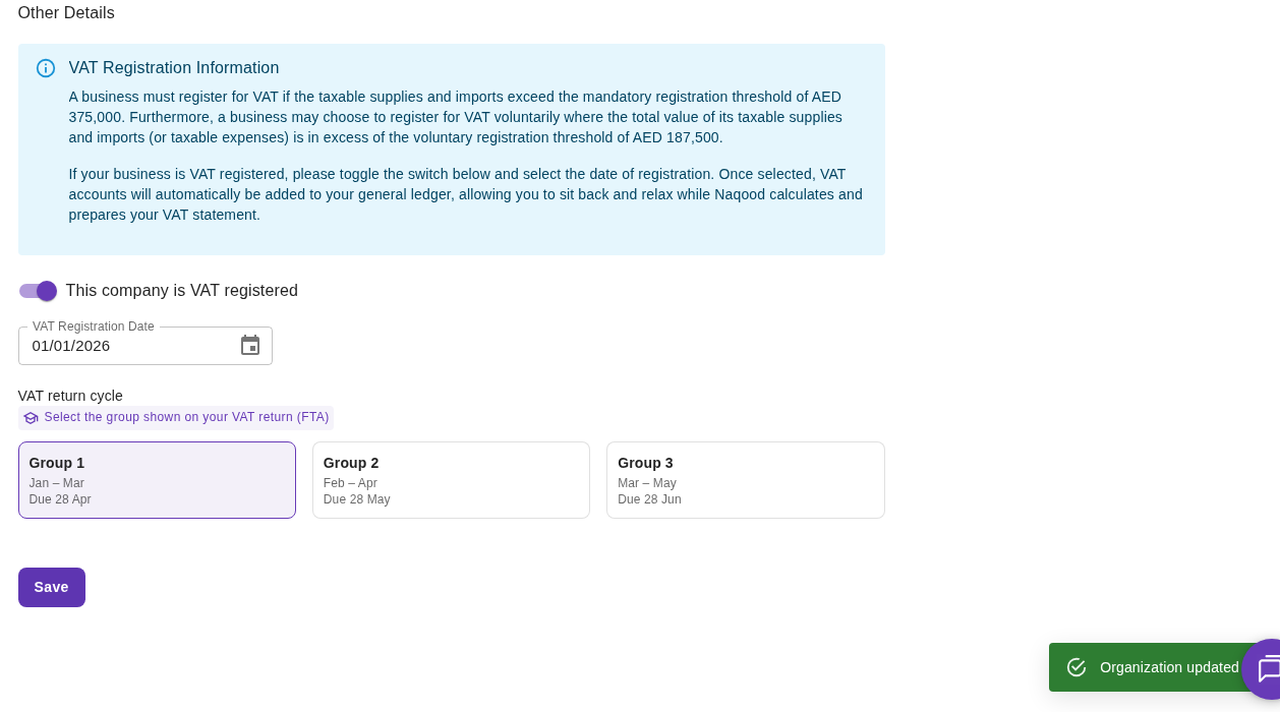
VAT registration lives on the same Company tab, under Other Details.
- Turn on This company is VAT registered.
- Pick your VAT Registration Date, the date you registered for VAT.
- Under VAT return cycle, pick the group shown on your VAT return:
- Group 1: Jan to Mar, due 28 Apr
- Group 2: Feb to Apr, due 28 May
- Group 3: Mar to May, due 28 Jun
- Click Save. Naqood confirms with Organization updated.
Not sure which group you are in? See UAE VAT return periods explained. New to VAT? Start with VAT registration.
If your business is not VAT registered, leave the switch off. Naqood then adds no VAT to your invoices.
How does Naqood decide between 5% and 0% VAT on an invoice line?
You do not pick a VAT rate on the invoice. Each line takes the VAT rate of its revenue account:
- Sales of goods and services uses S (Sales Standard VAT), so the line shows VAT (5%).
- Sales of goods and services abroad uses SZ (Sales Zero-Rated), so the line is 0%. See zero-rated supplies.
Naqood adds no VAT at all when:
- This company is VAT registered is off, or
- the invoice date is before your VAT Registration Date.
In those cases the line shows a Missing VAT? link that explains why.
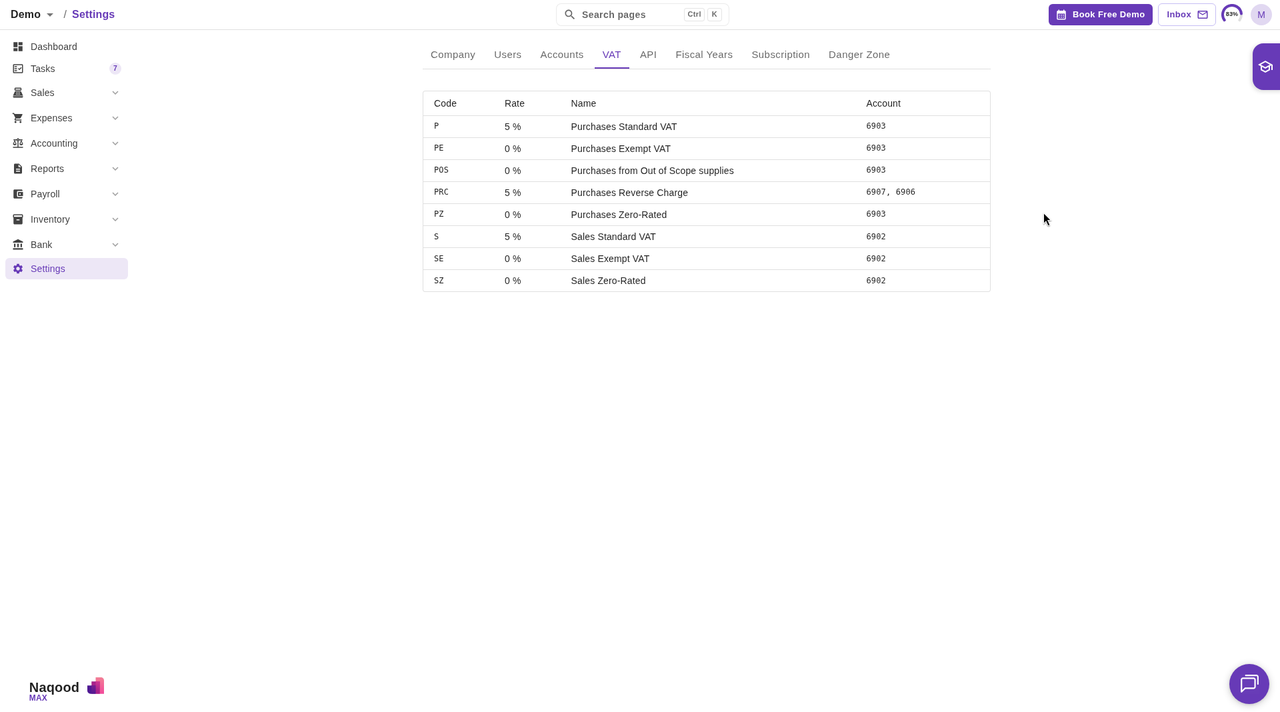
To see the VAT codes, open Settings and click the VAT tab. It lists each code with its rate, for example S at 5% (Sales Standard VAT), SE at 0% (Sales Exempt VAT), and SZ at 0% (Sales Zero-Rated). The Accounts tab shows which VAT code each account uses.
How do you add a bank account for your invoices?
Your invoice tells the customer where to pay. That comes from your bank account, so it needs a Bank Name and IBAN.
- Go to Bank → Bank Accounts.
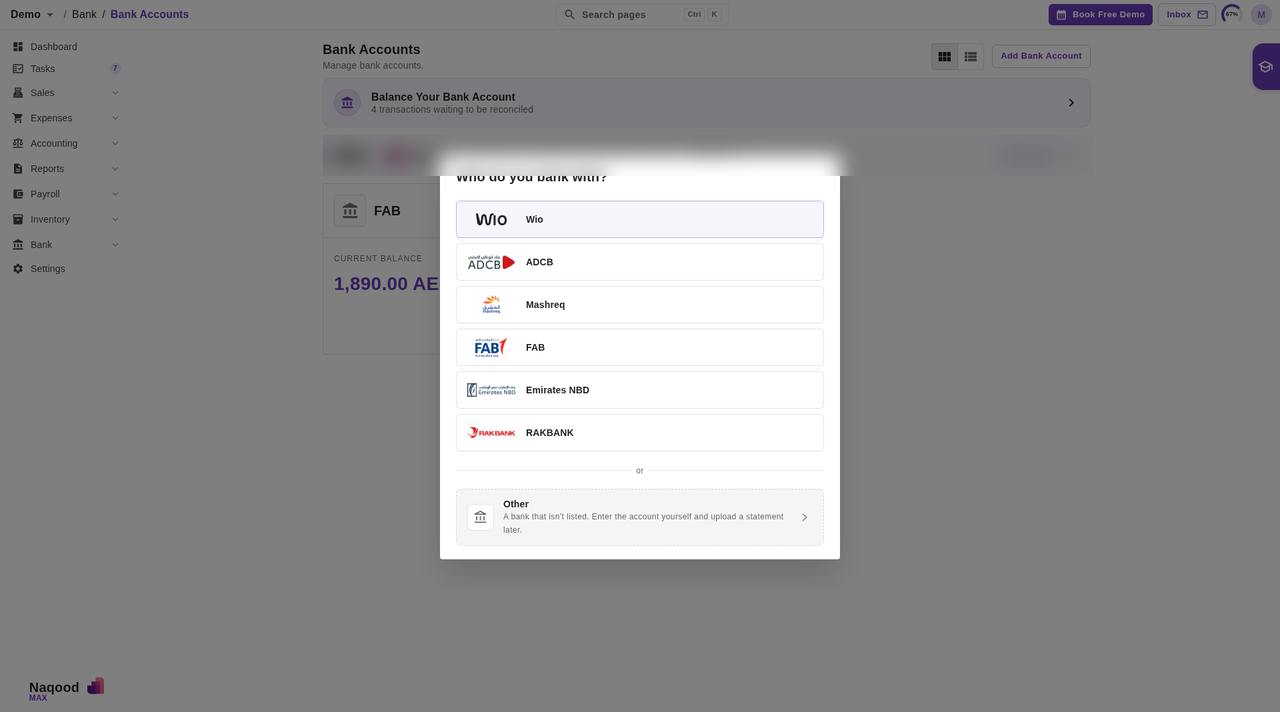
- Click Add Bank Account. The Who do you bank with? dialog opens.
- Pick your bank from the list: Wio, ADCB, Mashreq, FAB, Emirates NBD, or RAKBANK. If your bank is not listed, click Other. The form below is the Another bank form you get from Other.
- Fill in the form:
- Name: the name you will see in your ledger, for example FAB.
- Bank Name: the bank’s full name, for example First Abu Dhabi Bank.
- IBAN: your account’s IBAN. Naqood removes spaces for you.
- Currency: the account currency. It defaults to your organization currency, for example AED.
- Optionally, click Show Advanced Options to add BIC, Branch, Address, City, Postal Code, and Country. These appear on your invoices too.
- Click Save. Naqood confirms with Bank account added.
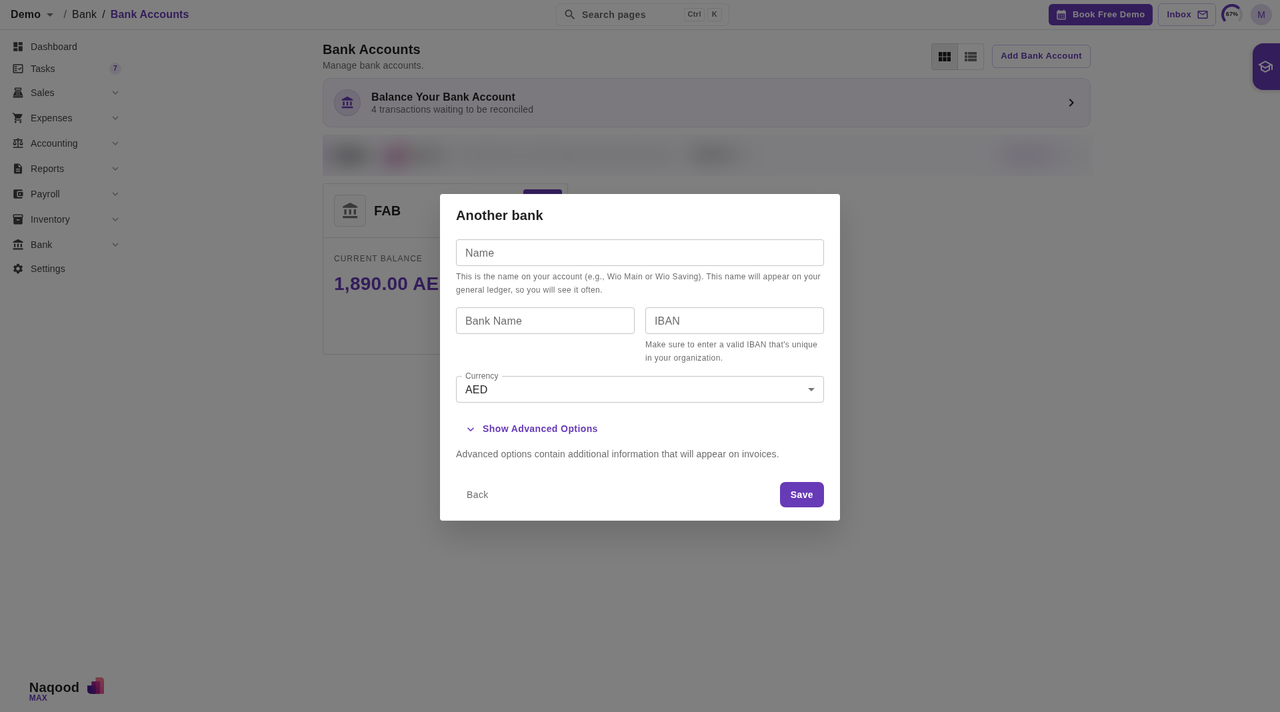
Your first bank account becomes the default, and new invoices pick it automatically.
How do you add an IBAN to a bank account you already have?
- On Bank Accounts, click the pencil icon (Edit) on the account’s card. Update Bank Account opens.
- Fill in Bank Name and IBAN. If an IBAN is already saved, the field reads Locked. Unlock to edit the IBAN. Click Unlock to change it.
- Check the Currency.
- Click Save. Naqood confirms with Bank account updated.
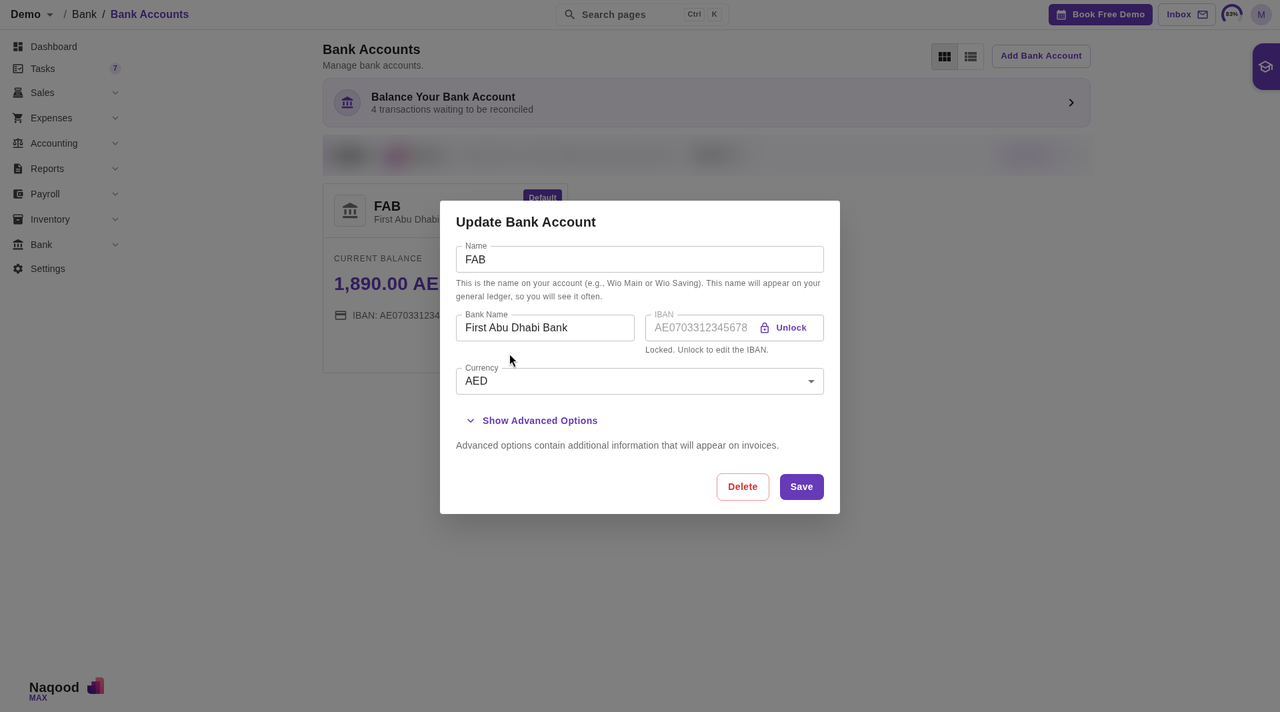
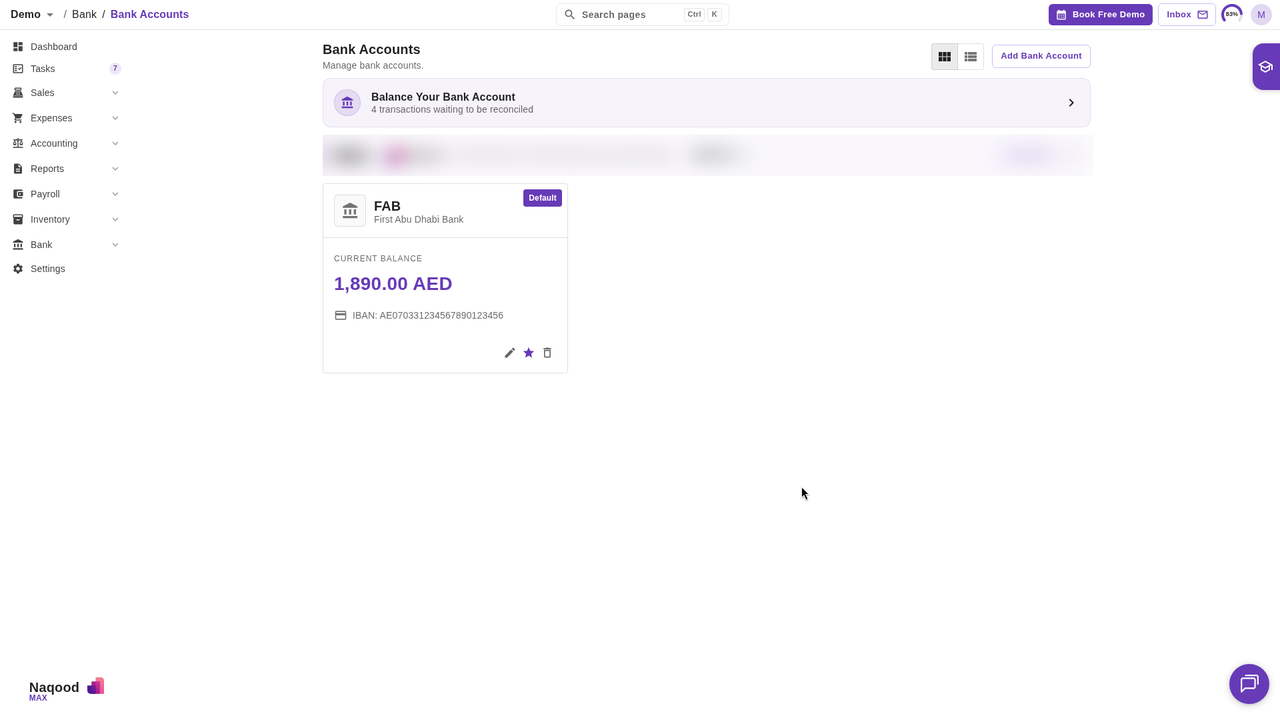
The card now shows the bank name under the account name, and the IBAN below the balance.
Where do you set payment terms and the bank on an invoice?
Payment terms and the bank account are set per invoice, in the payment box under the line items.
- Click the pencil icon on the payment box. The Payment Details dialog opens.
- Choose the Payment Term Type: Days or Current month + days.
- Enter the Payment Term Days.
- Check the Bank Account. Use Edit Bank Account to add a missing bank name or IBAN without leaving the invoice.
When you pick a customer, Naqood fills in the payment terms from that contact. If the contact has none, the fields stay empty and Review Before Approving lists Missing Payment Terms. If the bank account has no bank name or IBAN, the payment box shows Missing bank account details. Please add bank name and IBAN.
For the full walkthrough of payment terms, see how to create your first invoice in Naqood.
What does Review Before Approving check?
When you click Approve and something is missing, Naqood opens Review Before Approving. It lists each issue under a heading, then asks Are you sure you want to approve this invoice?
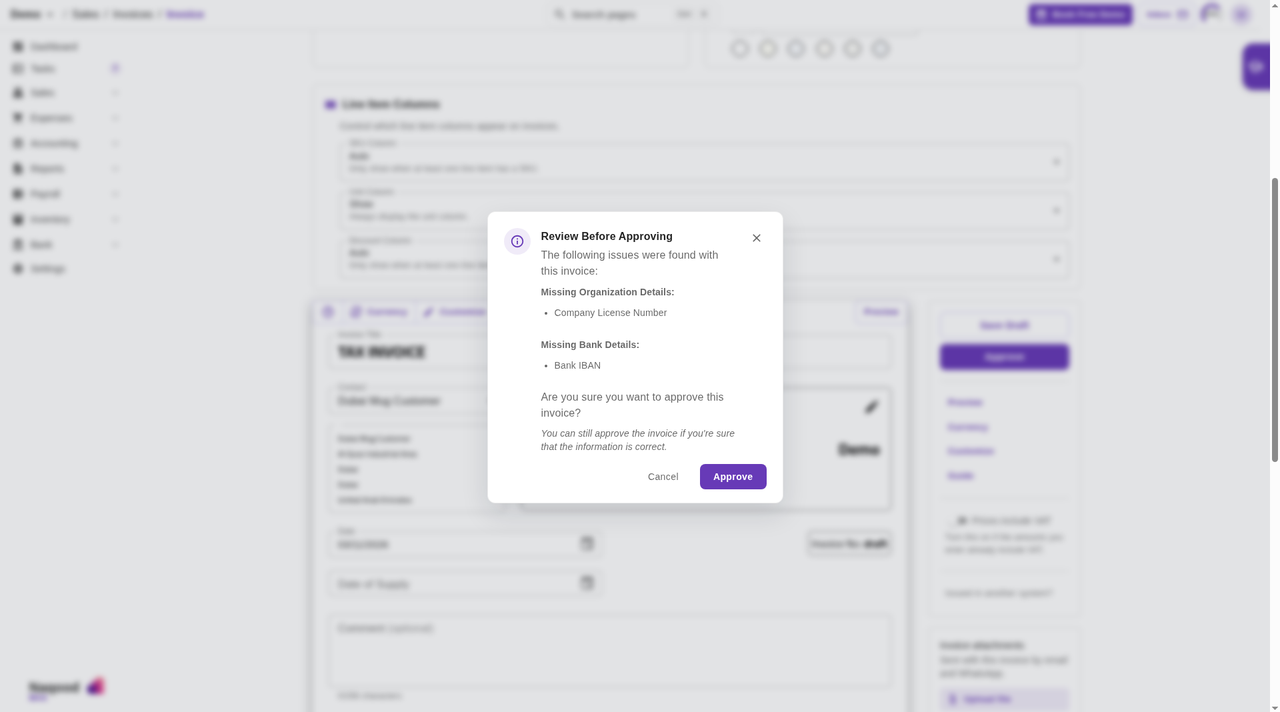
Here is every item it can show and where to fix it:
| Heading | Item | Where to fix it |
|---|---|---|
| Missing Organization Details | Company License Number | Settings → Company, field License Number |
| Missing Organization Details | Company Address | Settings → Company, field Address |
| Missing Organization Details | Country | Settings → Company, field Country |
| Missing Organization Details | Emirate | Settings → Company, field Emirate (UAE only) |
| Missing Bank Details | Bank Account | Add one in Bank → Bank Accounts, or pick one in the invoice’s Payment Details |
| Missing Bank Details | Bank IBAN | Update Bank Account, field IBAN |
| Missing Bank Details | Bank Name | Update Bank Account, field Bank Name |
| Missing Payment Terms | Payment Term Type | Invoice Payment Details, field Payment Term Type |
| Missing Payment Terms | Payment Term Days | Invoice Payment Details, field Payment Term Days |
| Configuration Issues | Currency mismatch: Invoice currency (X) differs from bank account currency (Y). | Pick a bank account in the invoice currency in Payment Details, or change the invoice Currency |
You can also fix company details without leaving the invoice. Click the pencil icon on the company box at the bottom of the invoice to open Update Organization Details. It is the same form as Settings → Company, and changes there apply to your whole organization.
You can still click Approve in the dialog. It is better to click Cancel and fix the details first. Naqood copies your company details onto the invoice at the moment you approve it, so anything missing then stays missing on that invoice.
What does a clean approve look like?
With everything filled in, the bottom of the invoice shows it all:
- The payment box reads, for example, Payment terms: 7 days - Due date: 10/11/2026, followed by Bank: First Abu Dhabi Bank and the IBAN.
- The company box shows your name and address, then License number: 1234567 / TRN: 100000000000003.
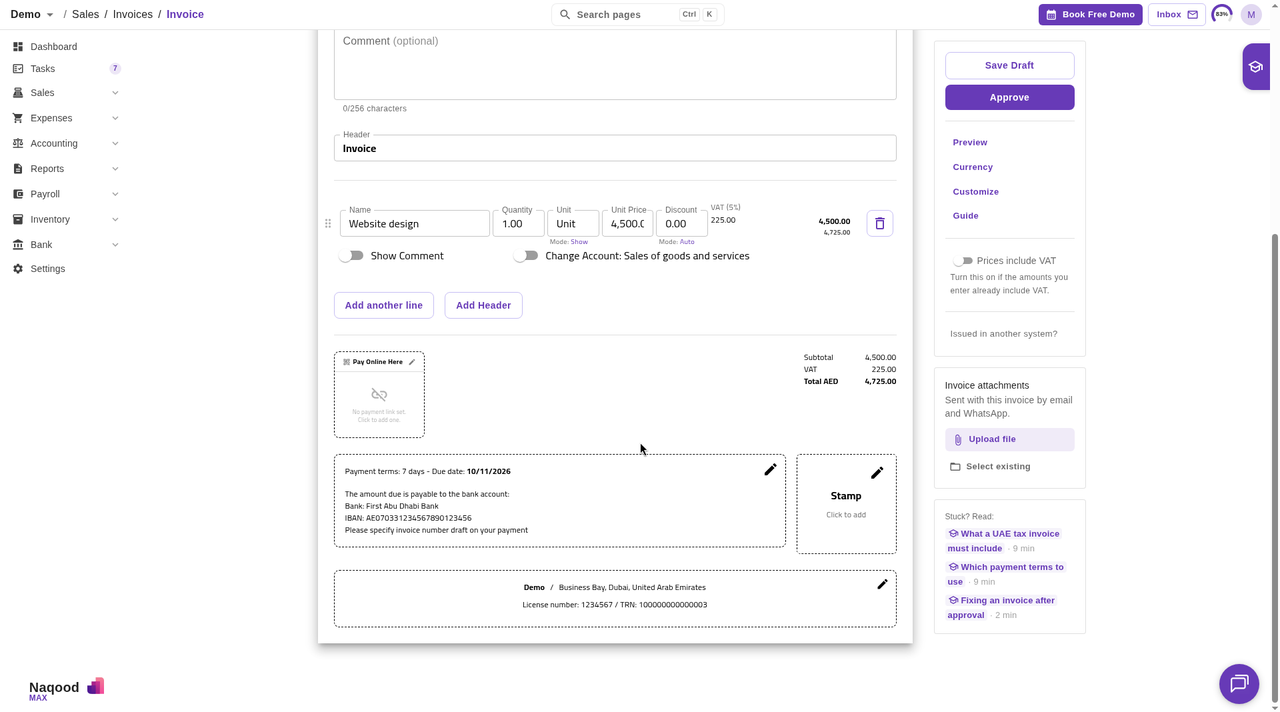
Click Approve. There is no Review Before Approving dialog this time. The invoice gets its number, in the example Invoice #6, and the status Unpaid.
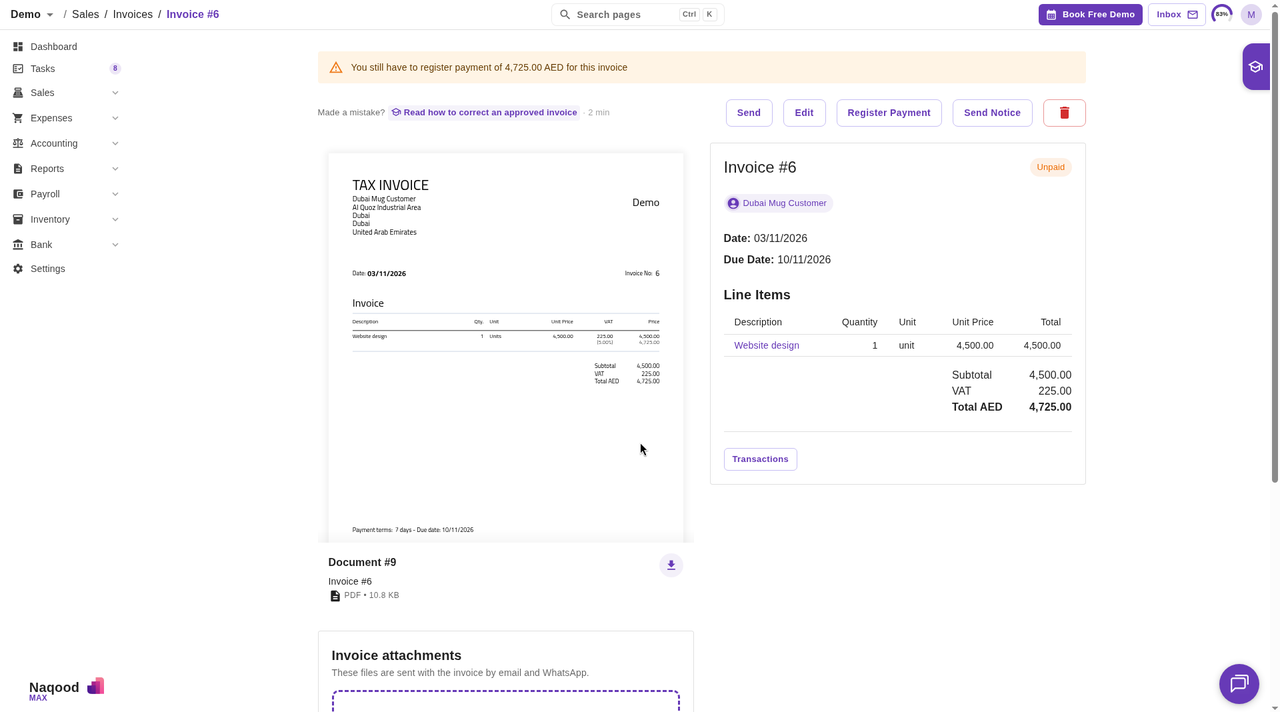
Next, the Send Invoice dialog opens so you can email the invoice to your customer. Sending is covered in how to create your first invoice in Naqood. If the customer pays late, see how to send invoice payment notices.
What are the common setup mistakes?
- The warning comes back on every invoice. You approved anyway instead of fixing the details. Fill in Settings → Company and your bank account once, and the warning stops.
- The License Number is in the TRN field. They are different numbers. The TRN comes from the FTA. The License Number is on your trade license.
- No Emirate field. Set Country to United Arab Emirates first. Emirate then appears.
- VAT shows 0% on every line. This company is VAT registered is off, or the invoice date is before your VAT Registration Date.
- Currency mismatch warning. The invoice is in one currency and the bank account in another. Pick a bank account in the invoice currency.
Frequently asked questions about company setup in Naqood
Do I have to fill in every field on the Company tab?
No. For a warning-free approve you need License Number, Address, Country, and Emirate (for the UAE). Add your TRN too if you are VAT registered, so it prints on your tax invoices.
Where do I find my License Number?
On your trade license. Enter it in License Number on the Company tab.
Can I approve an invoice with missing details?
Yes. Click Approve in Review Before Approving. The invoice keeps whatever was missing, because Naqood copies your company details onto it at approval.
Why does my invoice show VAT (0%)?
Your company is not set as VAT registered, the invoice date is before your VAT Registration Date, or the line uses a zero-rated or exempt account such as Sales of goods and services abroad.
Can I change my IBAN later?
Yes. Click the pencil icon on the bank account card, click Unlock next to the IBAN, enter the new one, and click Save.
Will changing my company details update old invoices?
No. Approved invoices keep the details they had when you approved them. New invoices use your updated details.
Send VAT compliant invoices in minutes
Create professional invoices and credit notes, track who has paid, and connect invoicing with VAT and accounting in one platform. Start free, FTA accredited.