 Naqood
How to make journal entries in Naqood
Journal entries are the backbone of your books in Naqood. Every number in your reports comes from them. Most are made for you behind the scenes: each invoice, purchase, payment and bank match creates its own journal entry.
This guide is about making journal entries directly, also called manual journal entries. Use one when there is no invoice or purchase to do the job, for example rent paid from the bank, a bank charge or a correction. You will learn what every field means, so you can book any manual entry and keep your books balanced.
New to journal entries? Read what a journal entry is first.
Where can you book a journal entry directly?
- Accounting → Worksheet: any manual entry, with one or many lines. You can also click Add Journal Entry in Accounting → Journal.
- Bank → Bank Reconciliation: click Journal on a bank line that has no invoice or purchase behind it. Naqood fills in the bank side for you.
- Edit on an existing entry: open it from Accounting → Journal to change its lines.
The fields are the same in all three places. This guide uses the Worksheet to show where to type.
What is in a manual journal entry?
A journal entry has a few fields for the whole entry, and one or more lines. Each line can post to several accounts at once: the account, its VAT, and a contra account with its own VAT.
Entry fields
| Field | What it means | What to put in it |
|---|---|---|
| Date | The date the entry is booked on. One date for the whole entry. | The transaction date, as DD/MM/YYYY. Required. |
| Contact | The customer or supplier the entry is about. | Pick a contact or create a new one. Leave it empty if there is none. |
| Attachments | Receipts or documents kept with the entry. | Click the paperclip on the first line and upload a file. Optional. |
| Number | The entry’s number in your journal. | Nothing. Naqood gives it the next number when you save. |
| Type | Shown as Journal Entry on the entry page. | Nothing. Naqood sets it for manual entries. |
Line fields
| Field | What it means | What to put in it |
|---|---|---|
| Description | Explains the line. There is no separate description for the whole entry. It shows on every posting the line creates, including the VAT and contra postings, and in your reports. | A short plain text, like Office rent. Required. |
| Account | The account the amount is posted to. | Type the code or name, like 3410. Required. |
| VAT on the account (Add VAT or VAT: P) | The VAT code for the account side. | Fills in from the account. Click it to change it, or pick Clear VAT code. |
| Amount | One number for the line, including VAT. The sign decides the side (see below). | For example 10500 or -10500. Required. |
| Currency (AED) | The currency of the amount. | Leave it on your own currency. For a foreign amount, click it and set Currency and Exchange Rate. Naqood fills in the rate for the date and shows the Converted Amount:. |
| Contra Account | The other side of the line. Naqood posts the same amount to it with the opposite sign. | Your bank, for example 5820 FAB. Optional: leave it empty if other lines balance this one. |
| VAT on the contra (Add VAT) | The VAT code for the contra side. | Usually empty when the contra is a bank account. |
| Match invoice or purchase (receipt icon, Worksheet only) | Links the line to an open invoice or purchase, so it counts as a payment. | Pick the invoice or purchase, and Naqood fills in the lines. Optional. |
To add another line to the same entry, click + at the end of the line. The trash icon deletes a line.
What does the sign of the amount mean?
Naqood uses one Amount per line instead of separate debit and credit columns:
- Positive is a debit to the Account. Expenses and assets go up.
- Negative is a credit to the Account. Revenue, liabilities and money leaving the bank are credits.
- The Contra Account always gets the opposite sign.
So paying 10,500 rent from the bank is Account 3410 Rent & lease payments, Amount 10500, Contra Account 5820 FAB. FAB goes down by 10,500. With VAT code P on the account, that splits into 10,000 rent and 500 input VAT (see VAT below).
If a sign looks unusual, the Amount gets an orange warning icon. Click it to see Amount Validation, for example Expense amounts are typically positive. It is only a warning, so you can still save, for example for a refund.
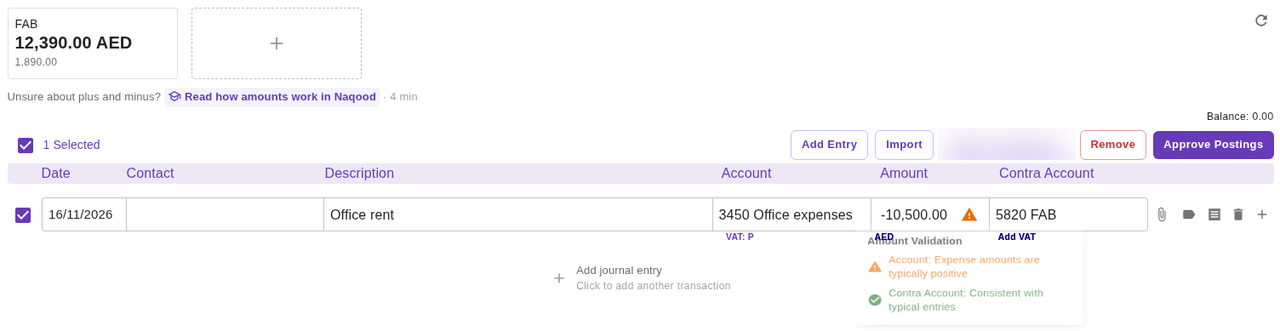
More on signs: understanding positive and negative amounts in Naqood.
When do you use a contra account?
The Contra Account is a shortcut for the other side. A line with an Account and a Contra Account balances by itself, so most simple entries need only one line.
You can also leave it empty and use more lines. These two entries post the same thing:
| Lines | Account | Amount | Contra Account |
|---|---|---|---|
| One line | 3410 Rent & lease payments | 10,500 | 5820 FAB |
| Two lines | 3410 Rent & lease payments | 10,500 | |
| 5820 FAB | -10,500 |
Use more lines when one payment covers several accounts, for example rent and a service charge paid together.
How do you book a manual journal entry?
- Go to Accounting → Worksheet and click Add Entry.
- Pick the Date, and a Contact if there is one.
- Type a Description.
- Pick the Account and check the VAT code under it.
- Type the Amount including VAT, positive for a debit and negative for a credit.
- Pick a Contra Account, or add more lines until the entry balances.
- Attach the receipt with the paperclip if you have one.
- Check that Balance: reads 0.00, then click Approve Postings.
Naqood confirms with 1 journal entry saved and gives the entry its number. If a field is missing, Naqood marks it in red. Date, Description and Amount show Required.
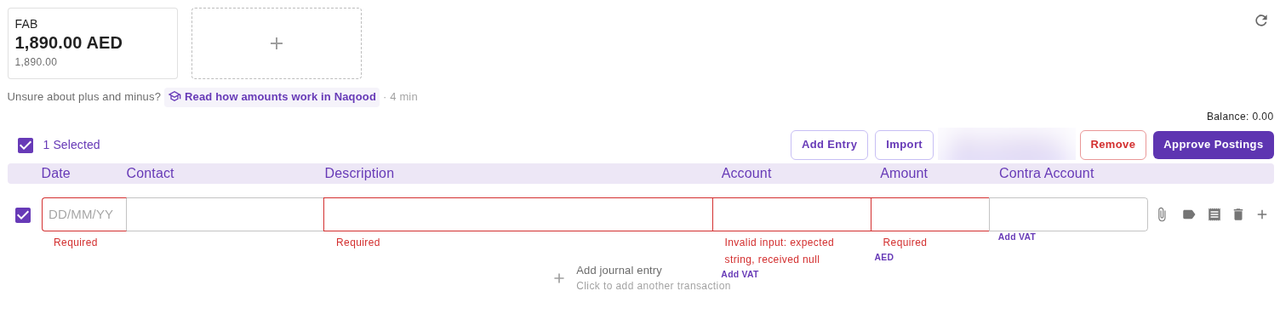
You do not lose your work if you leave the page. Worksheet is saved automatically, and unposted rows wait there.
In Bank Reconciliation, the same entry takes fewer steps. The bank account, date and amount come from the bank line. You only add the description under What was this for? and pick the other side under Choose a category, which is the contra account.
How does Naqood keep an entry balanced?
Every entry must balance: the debits must equal the credits. In Naqood that means all postings in the entry add up to zero.
- The Worksheet and the Edit Journal Entry dialog show Balance:. It must read 0.00.
- Until it does, Approve Postings and Update Journal Entry are greyed out. In the Worksheet, hover over Approve Postings to see Total balance must be zero to apply changes.
- In Bank Reconciliation there is no balance to check. The bank and the category are always the two sides of one line.
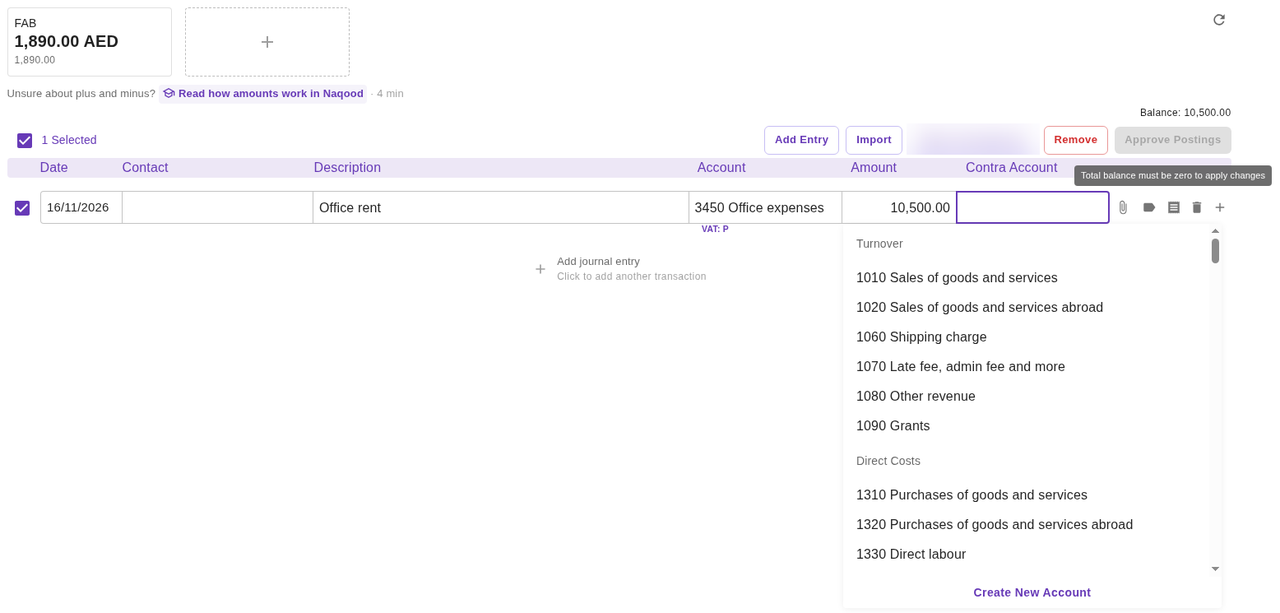
Here the Contra Account is empty, so Balance: reads 10,500.00. Pick 5820 FAB and it goes back to 0.00.
The Worksheet balance adds up all ticked rows together, but Naqood saves each entry on its own. If two unbalanced entries cancel each other out, the balance reads 0.00 but saving fails with journal entry transactions are not balanced. Make each entry balance by itself.
How does VAT work on a manual journal entry?
- Type the amount including VAT. Naqood splits it. With P (Purchases Standard VAT, 5%), 10,500 posts 10,000 to the account and 500 to 6903 Input VAT (Purchases).
- The VAT code fills in from the account when your company is VAT registered and the entry date is on or after your VAT Registration Date. Otherwise no VAT is added.
- In Edit, nothing fills in. If you change the account, check the VAT code and set it by hand.
- To change it, click the VAT code under the account. Search with Search VAT codes…, or pick Clear VAT code.
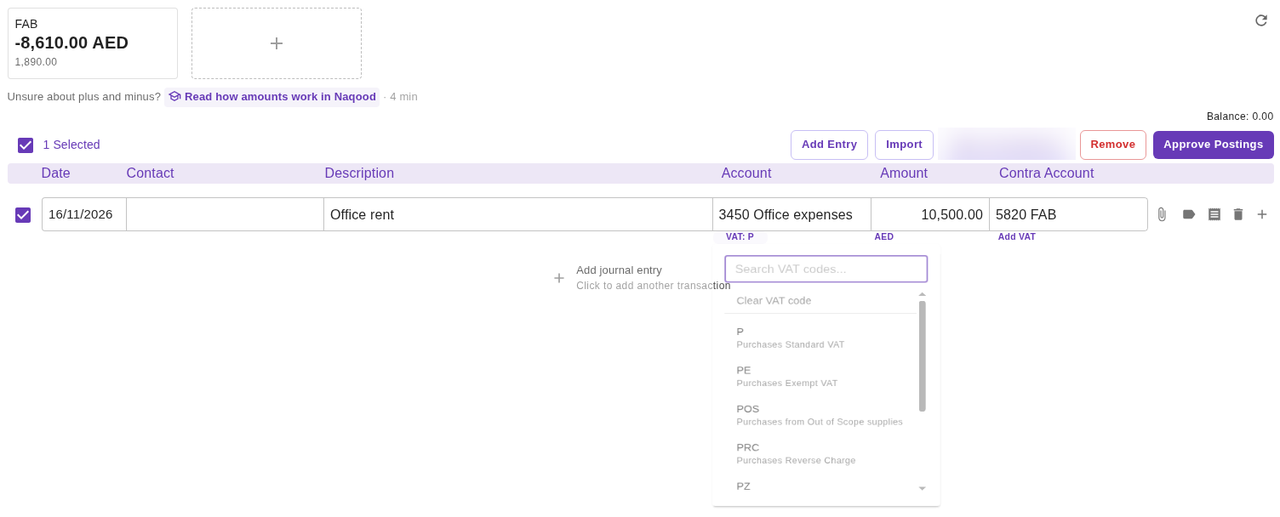
| Code | Name | Rate |
|---|---|---|
| P | Purchases Standard VAT | 5% |
| PE | Purchases Exempt VAT | 0% |
| PZ | Purchases Zero-Rated | 0% |
| POS | Purchases from Out of Scope supplies | 0% |
| PRC | Purchases Reverse Charge | 5% |
| S | Sales Standard VAT | 5% |
| SE | Sales Exempt VAT | 0% |
| SZ | Sales Zero-Rated | 0% |
PRC works differently. Naqood adds 5% on top to two VAT accounts that cancel each other out, so the account gets the full amount.
VAT does not change the balance. The split happens inside the line.
Worked examples
Rent paid from the bank
You paid 10,500 AED office rent, including 5% VAT, from FAB.
| Description | Account | VAT | Amount | Contra Account |
|---|---|---|---|---|
| Office rent | 3410 Rent & lease payments | P | 10,500 | 5820 FAB |
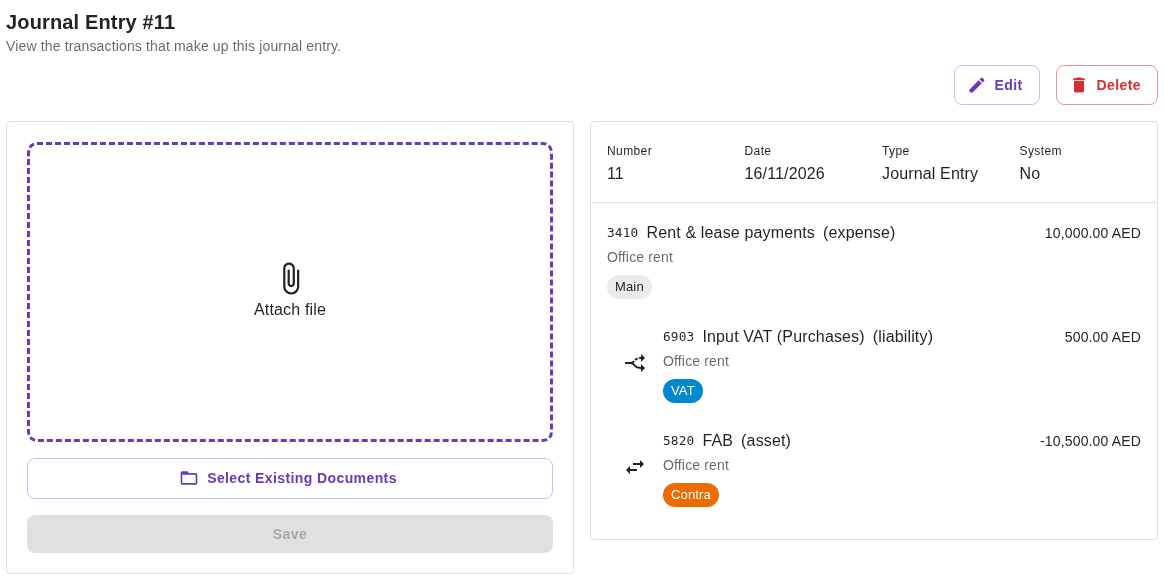
Naqood posts three lines. On the entry page they are tagged Main, VAT and Contra:
- 3410 Rent & lease payments: 10,000.00 AED
- 6903 Input VAT (Purchases): 500.00 AED
- 5820 FAB: -10,500.00 AED
A bank charge
Your bank took a 52.50 AED fee, including 5% VAT. Book it from the bank line in Bank Reconciliation, or in the Worksheet:
| Description | Account | VAT | Amount | Contra Account |
|---|---|---|---|---|
| Bank fee | 3675 Bank fees | P | 52.50 | 5820 FAB |
Naqood posts 50.00 to 3675 Bank fees, 2.50 to 6903 Input VAT (Purchases) and -52.50 to 5820 FAB.
In Bank Reconciliation the line is the other way round. FAB is filled in as the account with the bank amount, -52.50, and you pick 3675 Bank fees under Choose a category. The VAT code goes on the category. The result is the same.
Fixing a wrong account
The rent was posted to 3450 Office expenses by mistake.
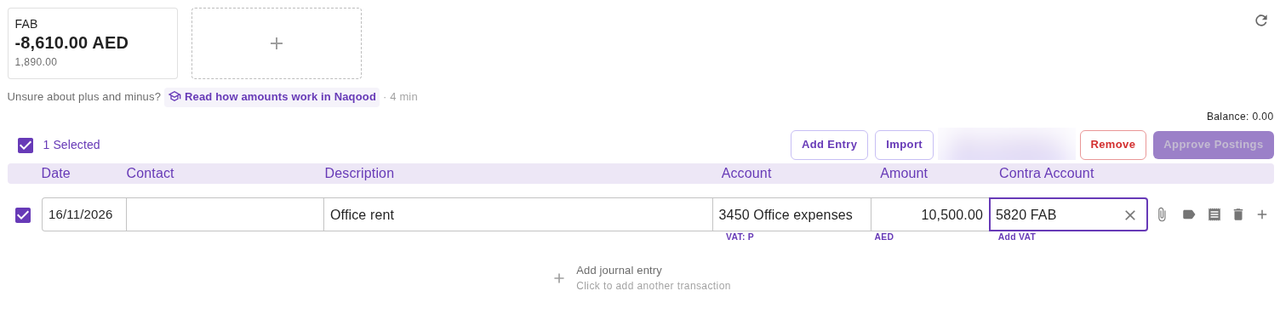
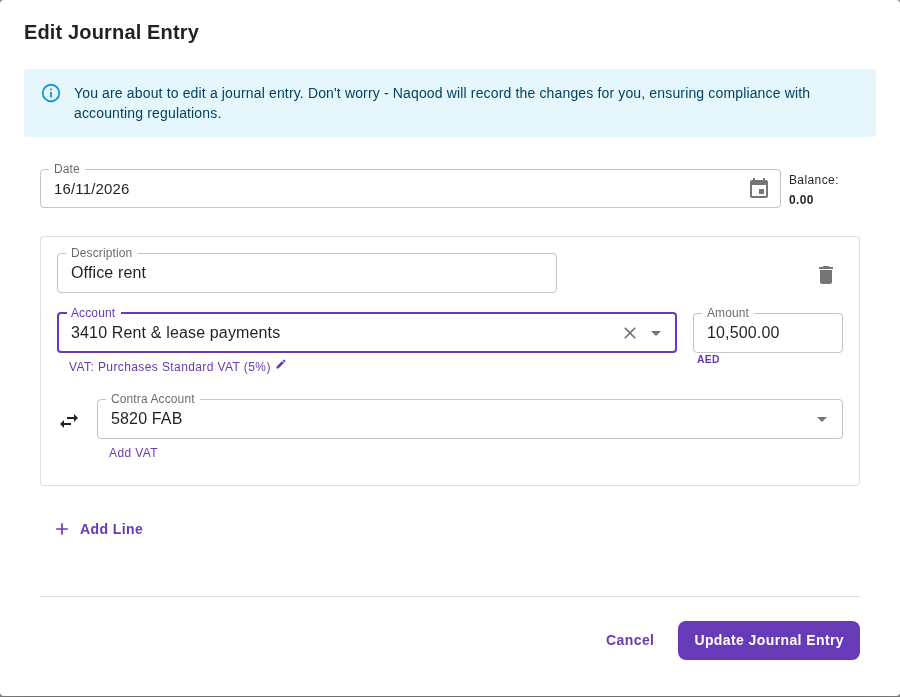
Open the entry from Accounting → Journal, click Edit, and change only the account:
| Description | Account | VAT | Amount | Contra Account | |
|---|---|---|---|---|---|
| Before | Office rent | 3450 Office expenses | P | 10,500 | 5820 FAB |
| After | Office rent | 3410 Rent & lease payments | P | 10,500 | 5820 FAB |
Both accounts use P, so the VAT stays right. Balance: reads 0.00. Click Update Journal Entry.
How do you correct or delete a journal entry?
Naqood never changes a posted entry in place. That keeps a record of every change.
- Edit: click Edit on the entry page, change the lines, and click Update Journal Entry. Naqood confirms with Journal entry updated successfully. It voids the old entry with lines marked Void # and the old number, and creates a new entry with the next number. Tick Show voided in Accounting → Journal to see the old one.
- Delete: click Delete on the entry page and confirm. Naqood confirms with Journal entry voided. See how to delete (reverse) a posted journal entry.
The Edit Journal Entry dialog has the Date and the line fields. It has no Contact field, so the new entry has no contact. Attachments stay with the entry. A line’s Contra Account is hidden until you click Add Contra Account, unless it already has one.
You can only edit and delete manual entries this way. Entries from invoices and purchases are changed from the document itself. On those entries the buttons read Edit Invoice or Edit Purchase, and Delete Invoice or Delete Purchase, which removes the document too.
Common mistakes
- Approve Postings is greyed out. Balance: is not 0.00. Usually a Contra Account or a line is missing.
- The VAT is too small. You typed the amount without VAT. Type the full amount you paid.
- No VAT on the line. Your company is not VAT registered, the date is before your VAT Registration Date, or the account has no VAT code. Click Add VAT to set one.
- The wrong sign. An orange warning on the Amount usually means a minus is missing or extra.
- VAT is wrong after an edit. Edit does not change the VAT code when you change the account. Set it by hand.
Frequently asked questions
Where are the debit and credit columns?
There are none. Each line has one Amount. Positive is a debit and negative is a credit.
Do I have to use a contra account?
No. It is optional. Without it, other lines in the same entry must balance the line.
Why did my entry get a new number after I edited it?
Naqood voids the old entry and creates a new one with the next number, so every change is on record.
Can I book into a closed fiscal year?
No. Naqood stops you with an error that the fiscal year is closed. In Edit it reads Cannot update a journal entry in a closed fiscal year.
Can I add many entries at once?
Yes. Click Import in the Worksheet and upload a CSV or Excel file. Use Download Template for the right columns. The rows land in the Worksheet, and you still click Approve Postings.
Keep your books in order with Naqood
Accounting software built for UAE small businesses: invoices, bills, bank, VAT and Corporate Tax in one place. Free plan, FTA accredited.