 Naqood
How to register for e-invoicing in Naqood
This guide shows you how to set up UAE e-invoicing for your company in Naqood. It takes two parts:
- In Naqood: register your company for e-invoicing with your email and TIN.
- In EmaraTax: appoint Tax Star as your e-invoicing provider.
Naqood works with Tax Star, an Accredited Service Provider (ASP) on the Ministry of Finance list (accreditation no. 175257). Under the UAE rules, a business has to appoint an accredited service provider to issue and receive e-invoices. Once Tax Star is appointed, you keep creating invoices in Naqood the way you do today.
The legal basis is Ministerial Decision No. 244 of 2025 on the Implementation of the Electronic Invoicing System, published by the Federal Tax Authority (FTA).
Before you start
Have these ready before you begin:
- Access to manage your company in Naqood. Only people who manage the company in Naqood can open the e-invoicing settings.
- Access to your company’s EmaraTax account. Someone who can sign in to EmaraTax with UAE PASS must do part 2. This can be a different person from the one who does part 1.
- The email address registered on your EmaraTax account. Tax Star asks for your “Registered EmaraTax E-mail Address”, so this is the email to use. It is often not the same as the contact email on your company profile in Naqood. Many companies use one email for EmaraTax and another for customers.
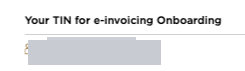
- Your TIN (Tax Identification Number). The TIN is 10 digits, starts with 1, and is the first 10 digits of the 15 digit TRN the FTA issued to you. Naqood suggests a TIN from your Corporate Tax TRN (CT TRN), and from your VAT TRN if no CT TRN is saved. You can confirm it in EmaraTax, where your home page shows it under Your TIN for e-invoicing Onboarding.
- Your company details in Naqood. These appear on every e-invoice, so Naqood asks for them before you can register:
- Country set to the United Arab Emirates
- Company name
- Trade licence number
- Issuing authority of the trade licence
- Address
- City
- Emirate
Part 1: Register your company in Naqood
Step 1: Complete your company details
- In Naqood, go to Settings and open the Company tab.
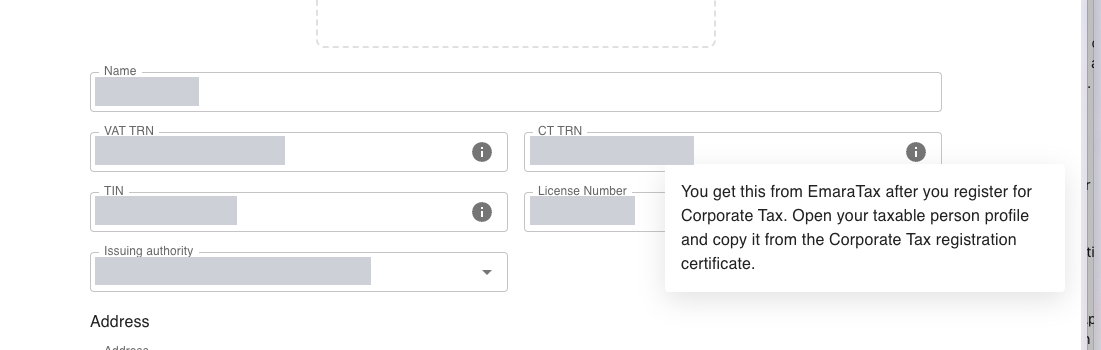
- Fill in your VAT TRN and CT TRN if you have them. You can find the CT TRN on the Corporate Tax registration certificate in your taxable person profile in EmaraTax.
- In the TIN field, click Fill from TRN to copy the first 10 digits of your TRN, or type the TIN yourself. Check it against your EmaraTax profile.
- Fill in the License Number, the Issuing authority, and the full address including City and Emirate.
- Click Save.
Step 2: Open the e-invoicing settings
Go to Settings and open the E-invoicing tab.
If any company details are still missing, Naqood shows a list such as “2 company details are missing”. Click a missing item or Add company details to fill it in, then come back to this tab.
Step 3: Check your email and TIN, then register
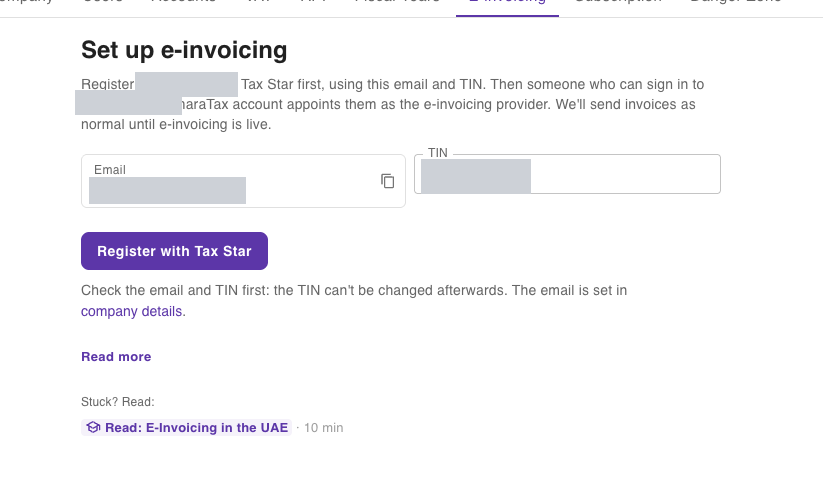
- Under Set up e-invoicing, check the Email. It must be the email registered on your EmaraTax account. If it shows your company’s contact email instead, change it before you continue.
- Check the TIN.
- Click Register with Tax Star.
Check the email and TIN carefully before you click. They cannot be changed afterwards.
Part 2: Appoint Tax Star in EmaraTax
After you register, the e-invoicing tab shows the steps for EmaraTax, with your email and TIN next to copy buttons. Keep this page open.
Step 4: Sign in to EmaraTax
- Click Open EmaraTax. EmaraTax opens in a new tab.
- Sign in with UAE PASS and open your company.
If your company is part of a VAT group, open the member company, not the group.
Step 5: Go to E-Invoicing
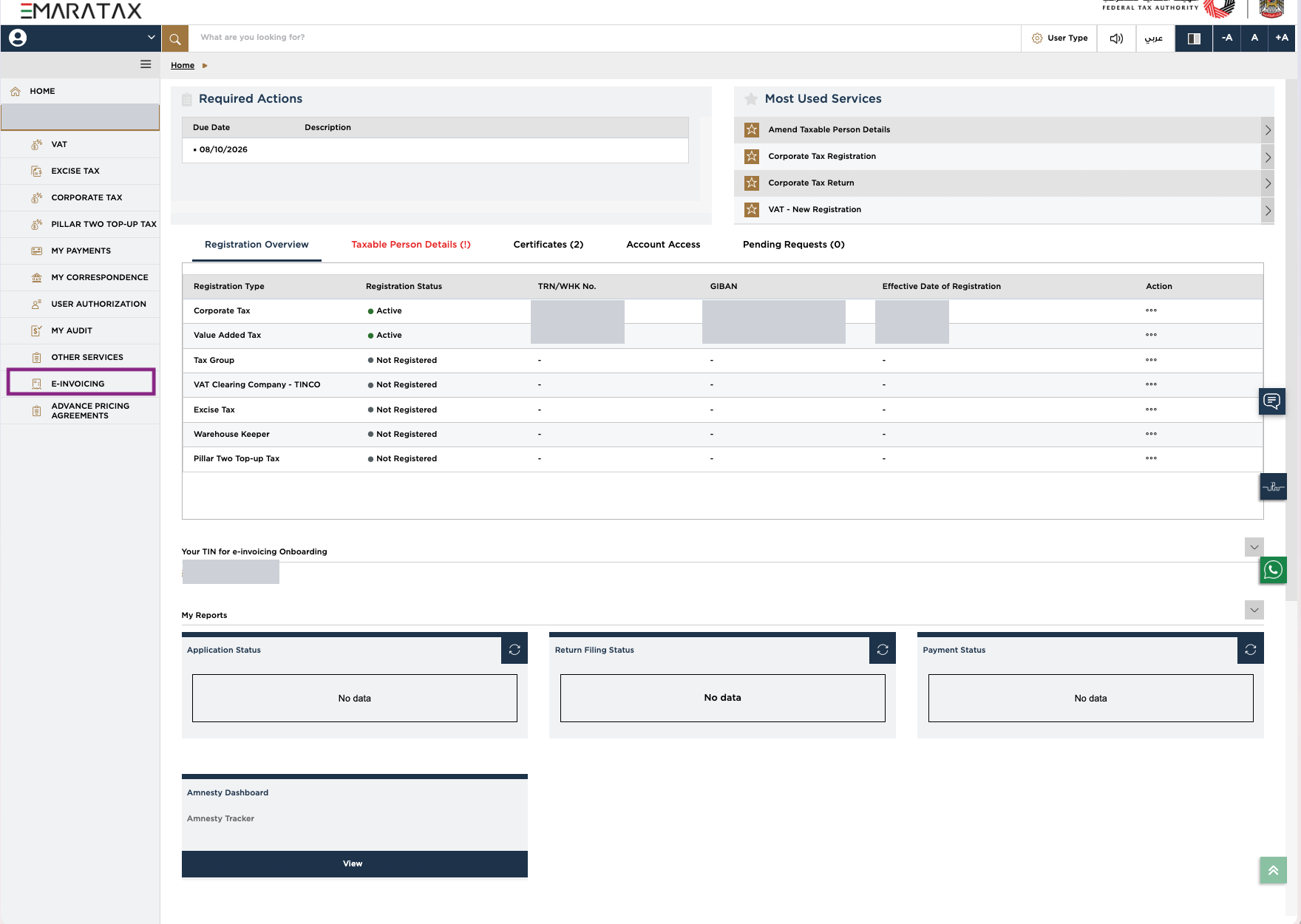
Click E-Invoicing in the left menu. If EmaraTax shows the guidelines first, tick the box and continue.
Step 6: Choose Tax Star
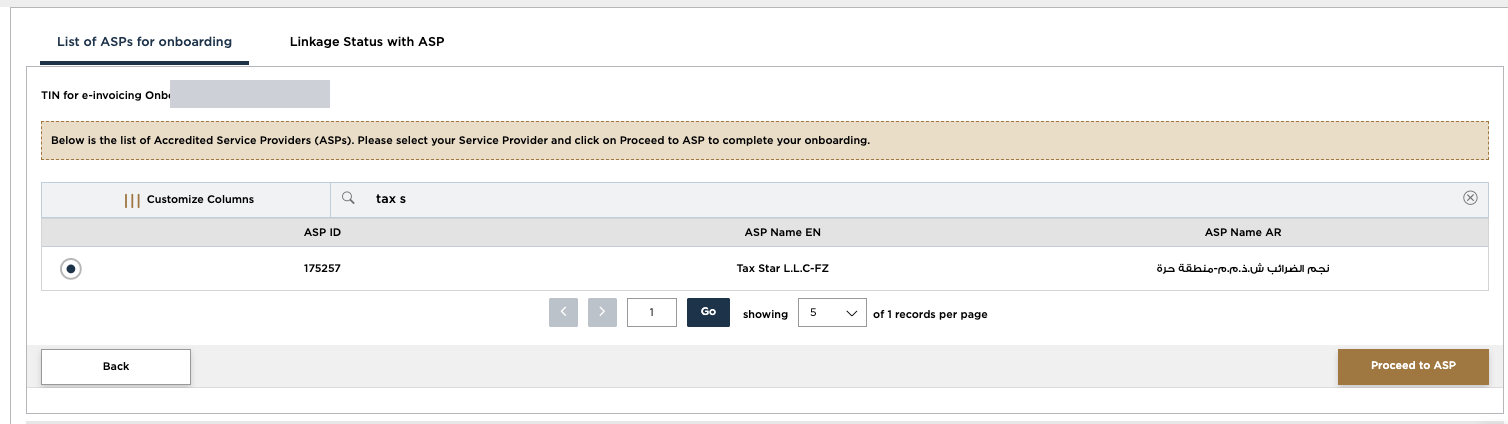
- On List of ASPs for onboarding, search for “Tax Star”.
- Select Tax Star L.L.C-FZ (ASP ID 175257).
- Click Proceed to ASP.
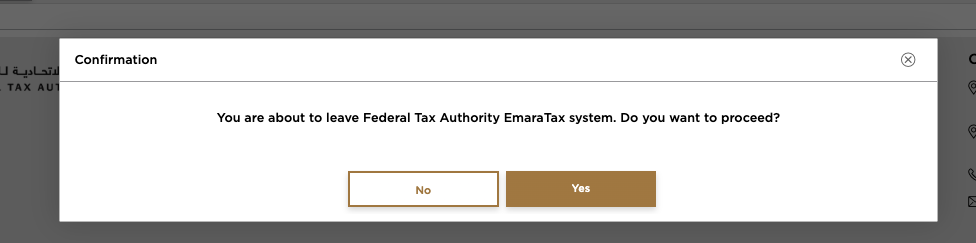
EmaraTax then asks: “You are about to leave Federal Tax Authority EmaraTax system. Do you want to proceed?” Click Yes. The Tax Star page opens.
Step 7: Enter your email and TIN at Tax Star
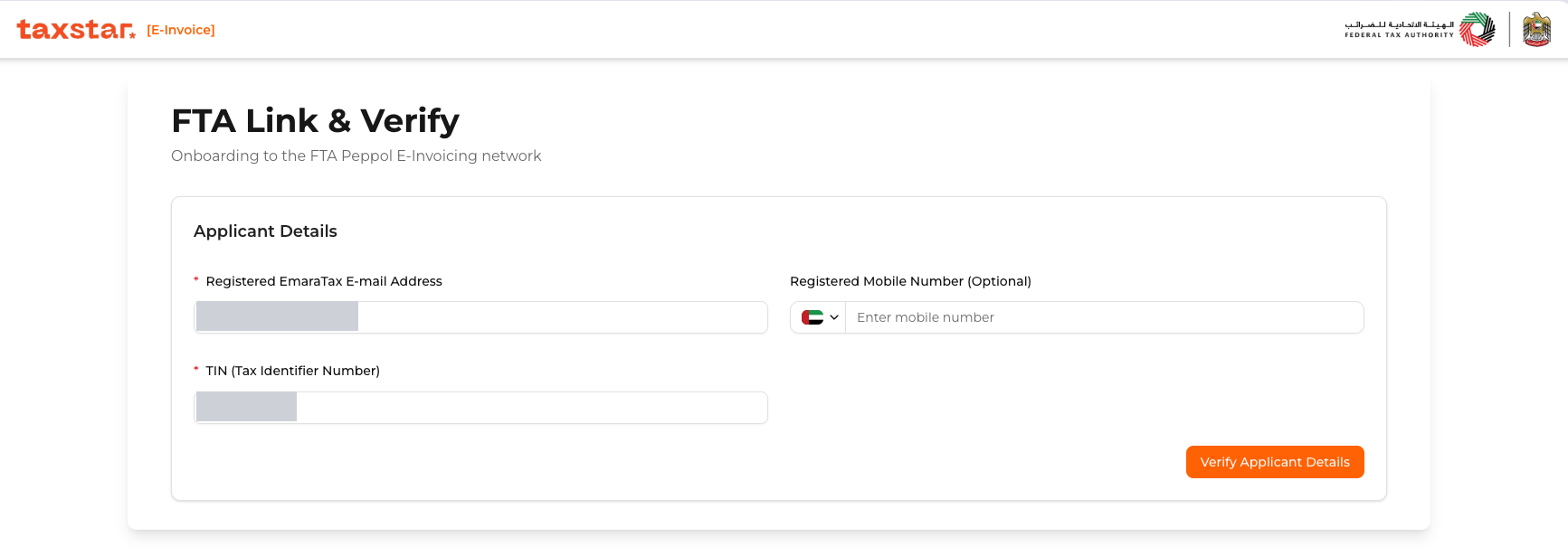
On the Tax Star page FTA Link & Verify, fill in the Applicant Details:
- Registered EmaraTax E-mail Address: the same email you registered in Naqood.
- TIN (Tax Identifier Number): the same TIN you registered in Naqood.
- Registered Mobile Number is optional.
- Click Verify Applicant Details.
Use the copy buttons in Naqood to avoid typing mistakes.
Step 8: Check your entity details and submit
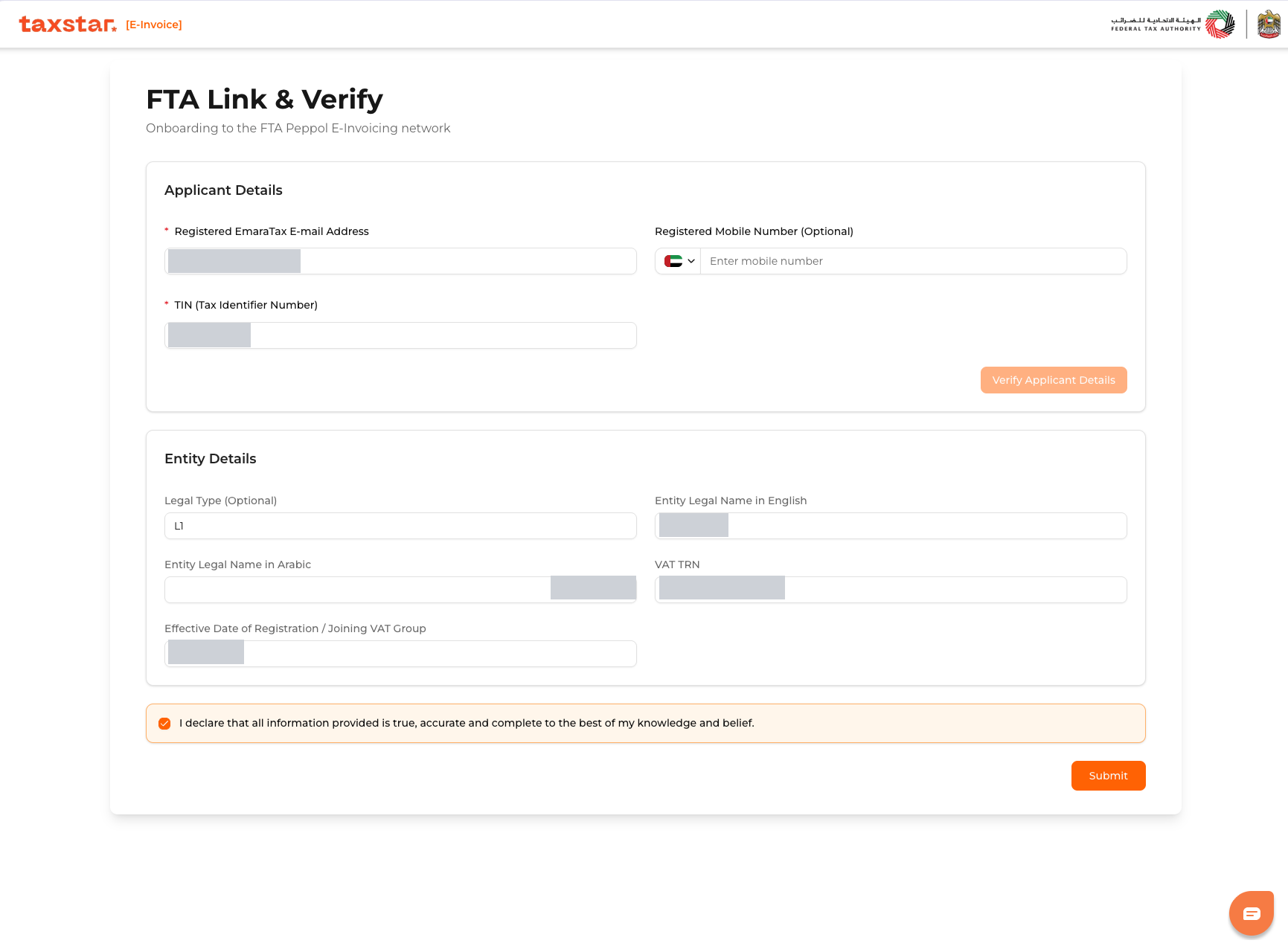
After verification, Tax Star shows your Entity Details: legal type, legal name in English and Arabic, VAT TRN, and effective date of registration.
- Check that the details are correct.
- Tick the declaration that the information is true, accurate and complete.
- Click Submit.
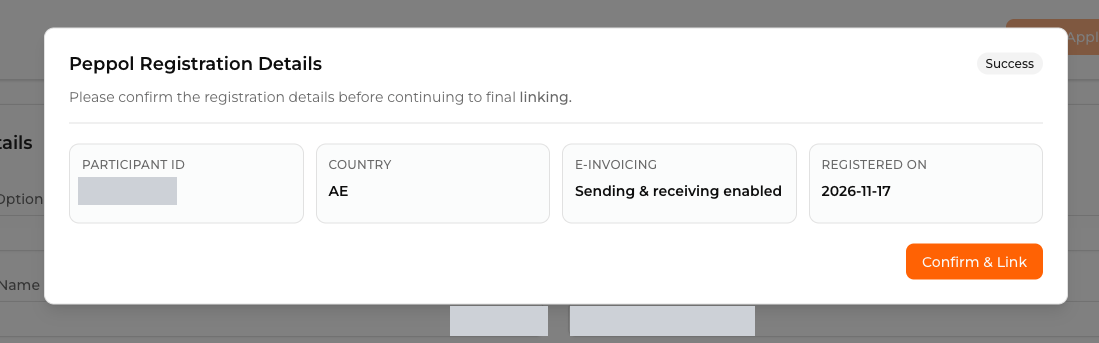
Step 9: Confirm and link
Tax Star shows your Peppol Registration Details: participant ID, country, e-invoicing status, and registration date. Check them and click Confirm & Link.
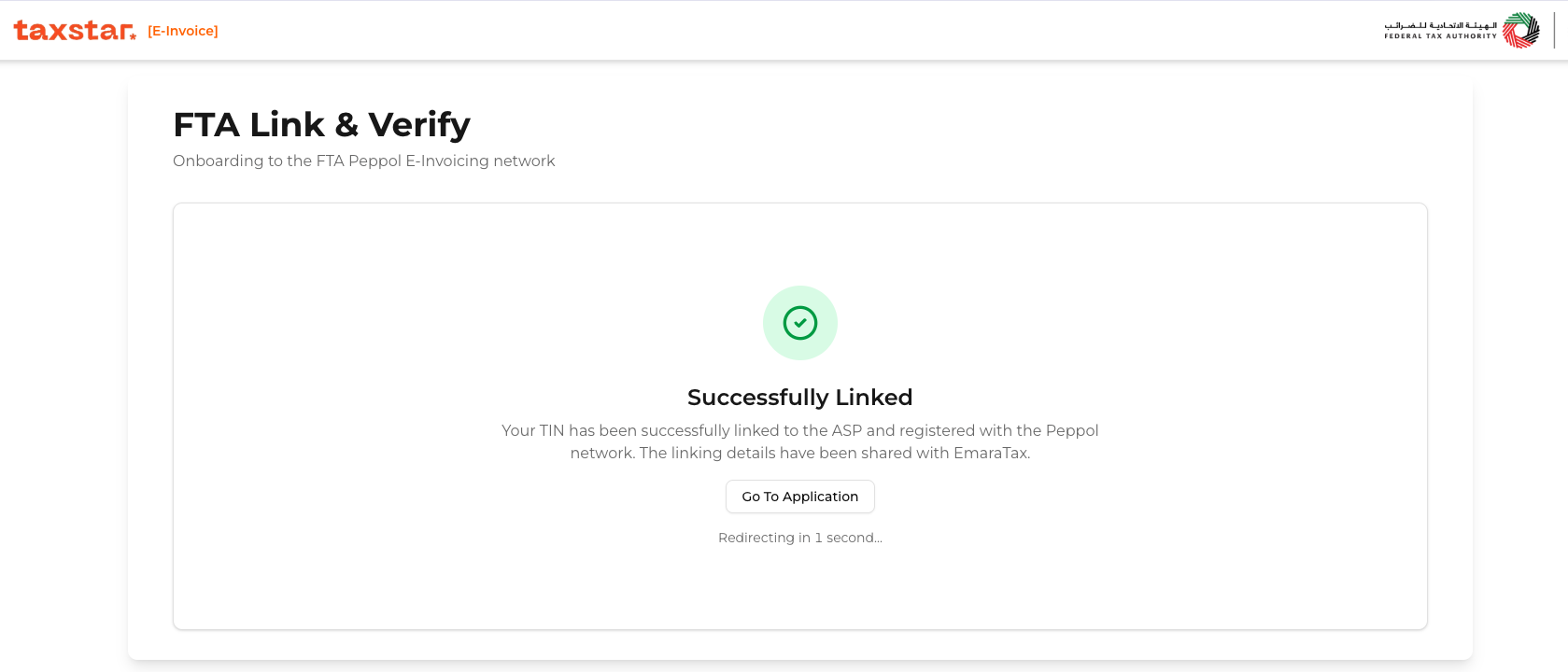
Step 10: Return to Naqood
You see Successfully Linked: your TIN is linked to the ASP and registered with the Peppol network, and the linking details are shared with EmaraTax. You are then sent back to Naqood automatically, or you can click Go To Application.
How to know it worked
When you come back to Naqood, you may first see Finishing your e-invoicing setup. Naqood is confirming your company with Tax Star. This usually takes less than a minute after you appoint Tax Star in EmaraTax.
When it is done, you see one of these messages:
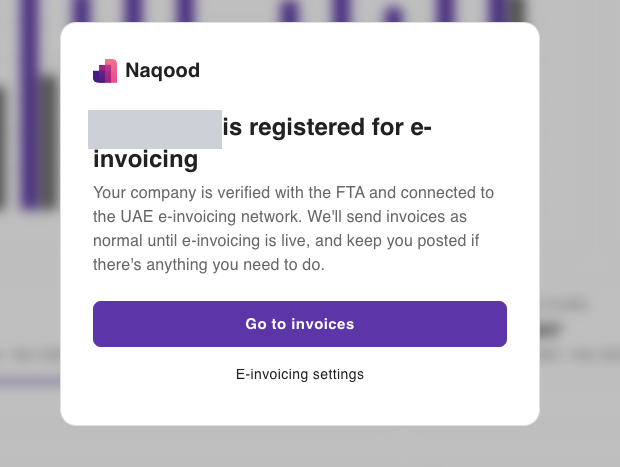
- “[Your company] is registered for e-invoicing” if e-invoicing is not live yet. Your company is verified with the FTA and connected to the UAE e-invoicing network. Invoices are sent as normal until e-invoicing is live, and Naqood will tell you if there is anything you need to do.
- “E-invoicing is live for [your company]” when e-invoicing is live.
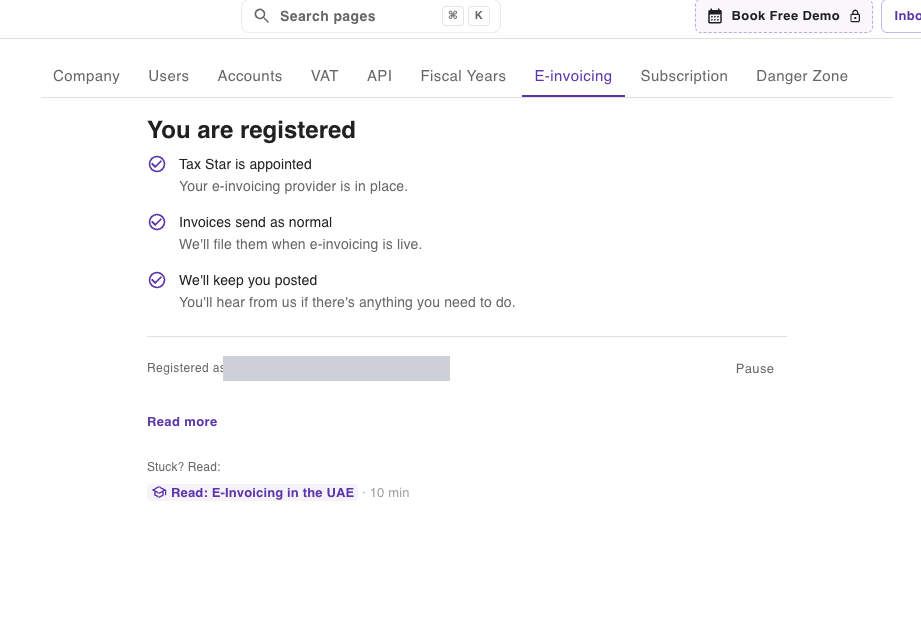
You can check your status at any time in Settings > E-invoicing:
- You are registered shows three checks: Tax Star is appointed, invoices send as normal, and Naqood will keep you posted.
- E-invoicing is on shows that invoices are filed when you finalize them.
- At the bottom you see the email and TIN you registered with.
If you appointed Tax Star but the settings page has not changed, return to the Naqood tab. The page switches over by itself once the appointment is confirmed.
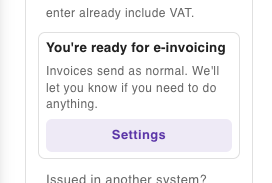
You may also see a card saying You’re ready for e-invoicing.
What happens after e-invoicing is live
- Invoices and credit notes to business customers are filed with the FTA when you finalize them. To leave one out, switch off Send as e-invoice on that invoice.
- E-invoices from your suppliers arrive under Purchases as drafts, ready to review.
- Each invoice shows its status, such as filed, delivered, or needing a fix, with what to change if it was refused.
To file an e-invoice for a UAE customer, the customer’s contact in Naqood needs:
- Their 15 digit TRN in the tax number field
- Their street address, city, emirate, and country
- A description on every invoice line
Key dates
These are the dates for appointing an accredited service provider and going live:
| Who | Appoint an ASP by | Go live by |
|---|---|---|
| Revenue of AED 50 million or more | 30 October 2026 | 1 January 2027 |
| Revenue below AED 50 million | 31 March 2027 | 1 July 2027 |
| Government entities | 31 March 2027 | 1 October 2027 |
Source: Ministerial Decision No. 244 of 2025, as amended by Ministerial Decision No. 66 of 2026.
If you only sell to consumers but buy from other businesses, you still need to appoint a provider so you can receive e-invoices. The FTA explains this in its e-invoicing FAQ.
Common problems
- “This TIN is already reserved by another service provider”: another provider already holds this TIN.
- “This company is already linked to another provider or application on Taxstar”: the company is already set up elsewhere.
- “Add these company details first”: one or more company details are missing. Fill them in under company details and try again.
- You don’t have access to EmaraTax: ask the person who manages your company’s EmaraTax account to do part 2, or to give you access.
Pausing e-invoicing
You can pause e-invoicing in Settings > E-invoicing. While paused, invoices are not filed with the FTA and supplier e-invoices are not imported. Your EmaraTax appointment stays in place, and supplier e-invoices sent in the meantime are imported when you resume. If e-invoicing is already mandatory for your company, invoices must still be filed within 14 days.
Keep your books in order with Naqood
Accounting software built for UAE small businesses: invoices, bills, bank, VAT and Corporate Tax in one place. Free plan, FTA accredited.